
Uninstall or reinstall the app
Shopify cuts the app off before it can tidy up, so two things need doing by hand: turn cover off on your products before you uninstall, and draft or delete the two plan products afterwards. Your coverage settings won't survive. Reinstalling later works once those products are gone.
Before you uninstall
Three things only the app can do for you, so do them while it's still installed.
- Open each covered product in Shopify and find the Staingard Plan Cover block.
- Turn off Offer plan cover on this product and save the product. This puts the product back on the template it used before cover was turned on. Nothing else can do that once the app has gone. Choose which products to cover shows the block.
- Open Plan pricing and write down your tiers or your rate. There's no export.
- Open Store locations and note which Staingard store id each location maps to.
- Note the Coverage category and Material of each covered product, if you'd struggle to set them again from memory.
- Open each open draft order and remove any plan line from it. A plan line on a product that is later deleted can't be charged. Add plan cover to a draft order shows where the line sits.
Registrations already sent to Staingard are unaffected. Staingard holds the cover and it stays in force.
Orders still waiting on a hold stay waiting. The app can't clear them while it's gone. Both ways out need it: the order update that releases a hold, and Retry this order's registrations. If you reinstall within about sixty days of the order, Retry works as normal. After that the order is older than Shopify lets the app read. The row then becomes Withdrawn — the order aged out before it was fixed. An order hasn't registered explains that state. Nothing times out or expires on its own in the meantime.
Orders you fulfil after uninstalling never register. The app isn't there to see them. If a customer bought a plan on one of those orders, ask Staingard to register the cover by hand.
Uninstall
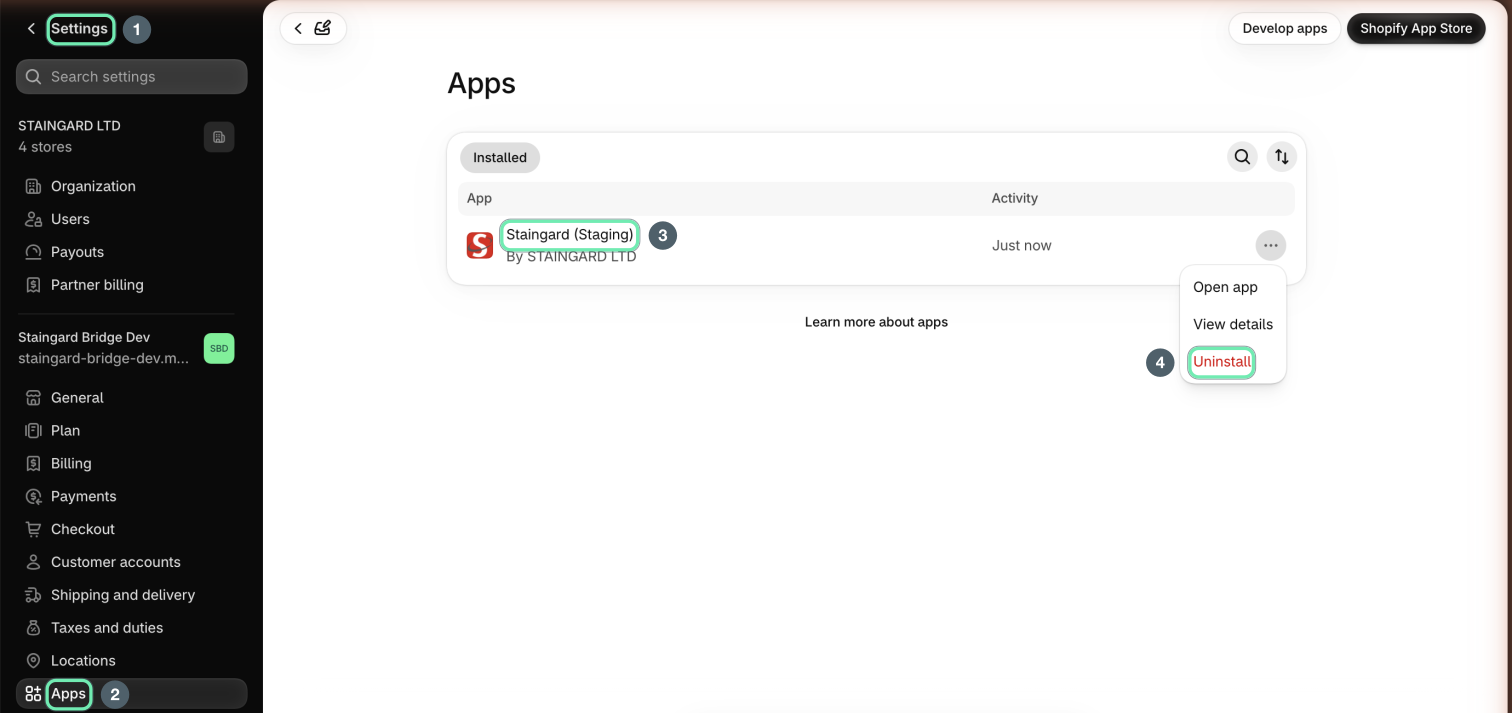
- In Shopify admin, open Settings.
- Select Apps and sales channels.
- Select Staingard Protect.
- Select Uninstall and confirm.
Shopify removes the app's menu and its theme blocks at once. Everything else below stays in your store until you deal with it.
Delete or draft the two plan products
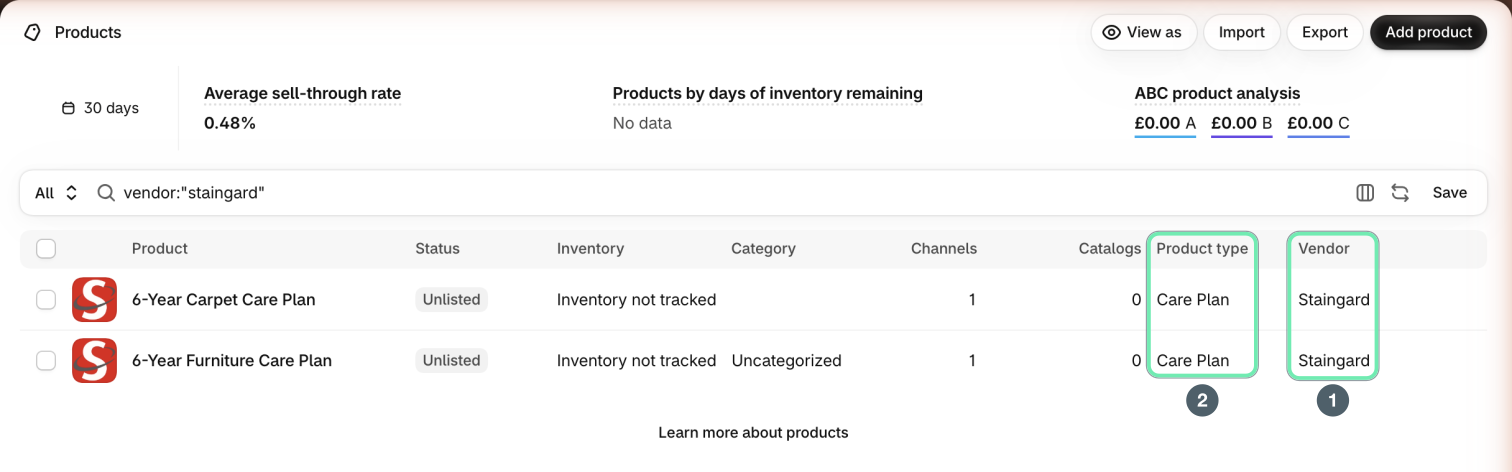
The two plan products the app created are still in your Products list. They're hidden from your storefront's browse and search, but still published, so a direct link opens them. With the app gone, nothing prices them, and that link sells a plan at £0.00. A plan bought that way is never registered with Staingard. Either delete the products or set them to Draft.
- Open Products and filter by Vendor Staingard and Product type Care Plan. Two products appear: 6-Year Furniture Care Plan and 6-Year Carpet Care Plan.
- Delete both. If you'd rather keep them, set each to Draft instead. Deleting is better, because a later reinstall needs them gone anyway.
Reinstalling explains why. - Delete the three demo products if you installed them: the sofa, the carpet and the dining set. They've always been drafts, so no customer ever saw them, but they're no use without the app.
- Check whether any product still uses the
staingardtemplate. Its one job is to hide Buy it now, and a product left on it keeps the button hidden after uninstall. Assign each one back to your usual template. - Delete the
staingardproduct template from your theme once no product uses it.
Turning cover off before you uninstalled moved each product off that template for you. Steps 4 and 5 catch any you missed.
What the app keeps
Nothing in your store needs the app to stay healthy, but two kinds of data go away on a timetable you don't control.
In your store. Shopify deletes the app's settings on your products some time after uninstall. That means whether cover was on, the Coverage category, the Material, the Unit count and any Plan price override. The record of each product's original template goes with them. Shopify gives no fixed window for this. The theme blocks go at once. Until the cleanup happens, those settings are harmless on your own products and safe to leave. Orders that already contain a plan line stay exactly as they are.
On Staingard's side. For 48 hours after uninstall nothing changes. After that, your Staingard credentials are erased from the app, and personal data is scrubbed from every registration the app stored. The registrations themselves stay with Staingard, so cover already registered stays in force. A record of each scrubbed order remains without personal details, so the same order can never be registered twice.
General questions carries the short version of this answer.
Reinstalling
How a reinstall goes depends on whether Shopify has finished its cleanup.
Within a few days. Your product settings may still be in place, and Shopify reattaches them to the app. Install add-on products finds the two plan products and uses them. The theme blocks are usually still there. Open Home and check what it reports before you redo anything.
Later. Home shows Plan add-on products aren't installed. The old plan products have lost the stamp the app looks for, so it no longer recognises them. Install the add-on products covers that card. Running Install add-on products then stops on A product in your store already uses a product handle this app needs: delete the old plan products and run the step again, as Install the add-on products explains.
- Delete the old plan products if you haven't already.
Delete or draft the two plan products has the steps. - Install the app again from the Shopify App Store. Install Staingard Protect starts there.
- If more than 48 hours have passed, open Connect Staingard and enter your Staingard details again. The screen reads Not connected yet until you do, and Connect your store to Staingard walks through it.
- Open Store locations and map each location again from your notes.
- Open Setup and select Install add-on products.
- Open Plan pricing and enter your tiers or rate again from your notes.
- Open Product coverage and turn cover on again for each product, with its Coverage category and Material. Shopify's cleanup took these with it.
- Open your theme editor and check which Staingard blocks are already there. From the Home card Add Staingard Protect to your theme, add only the blocks that are missing. Each link on that card adds a new block every time you select it, so a block that's already present gets a twin. Add the plan offer to your theme covers the four steps.
Still stuck? Email Staingard at salesteam@staingard.co.uk.