
Clear a hold on an order
A plan that hasn't registered is almost always waiting for one thing: an address, an email, a payment, a unit count. The order's Plan cover block names it. Fix that one thing, then select Retry this order's registrations. A hold is a wait, not an error.
Find held orders
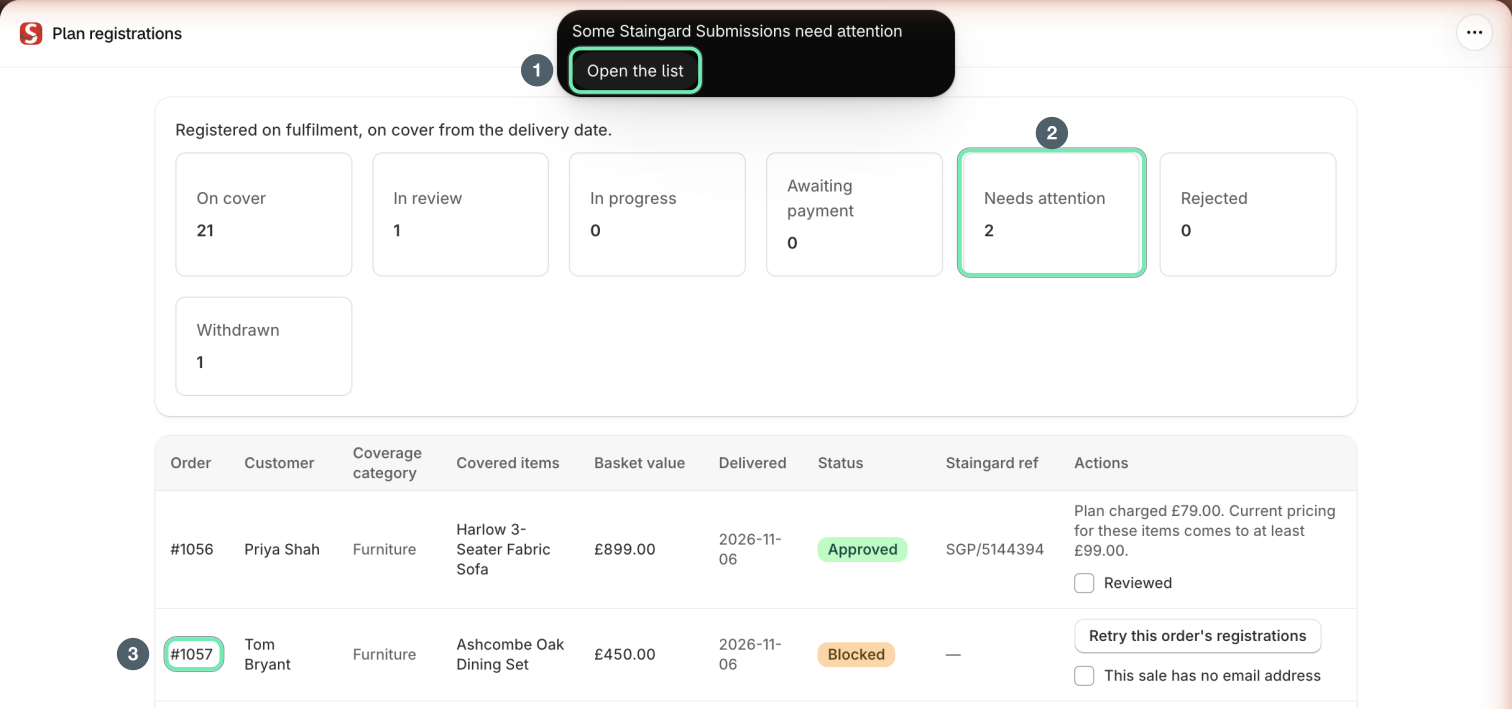
There are two ways to find a held order, and both start on the app's Home screen.
- Open Staingard Protect. While anything is waiting on you, a toast says Some Staingard Submissions need attention. Select Open the list to go to Home.
- Select the Needs attention tile. The list shows only the orders waiting on something you can fix.
- Select the order number in the Order column to open the order in Shopify.
The toast shows once each time you open the app, for as long as anything needs attention. It also appears for a rejected registration and for live cover on returned goods. It stays silent for orders that are only waiting for a payment: those sit under Awaiting payment instead, and that tile is the only place to find them.
Each row on Home carries a badge in its Status column:
The tiles themselves are explained under Read the Home screen.
Read the reason on the order
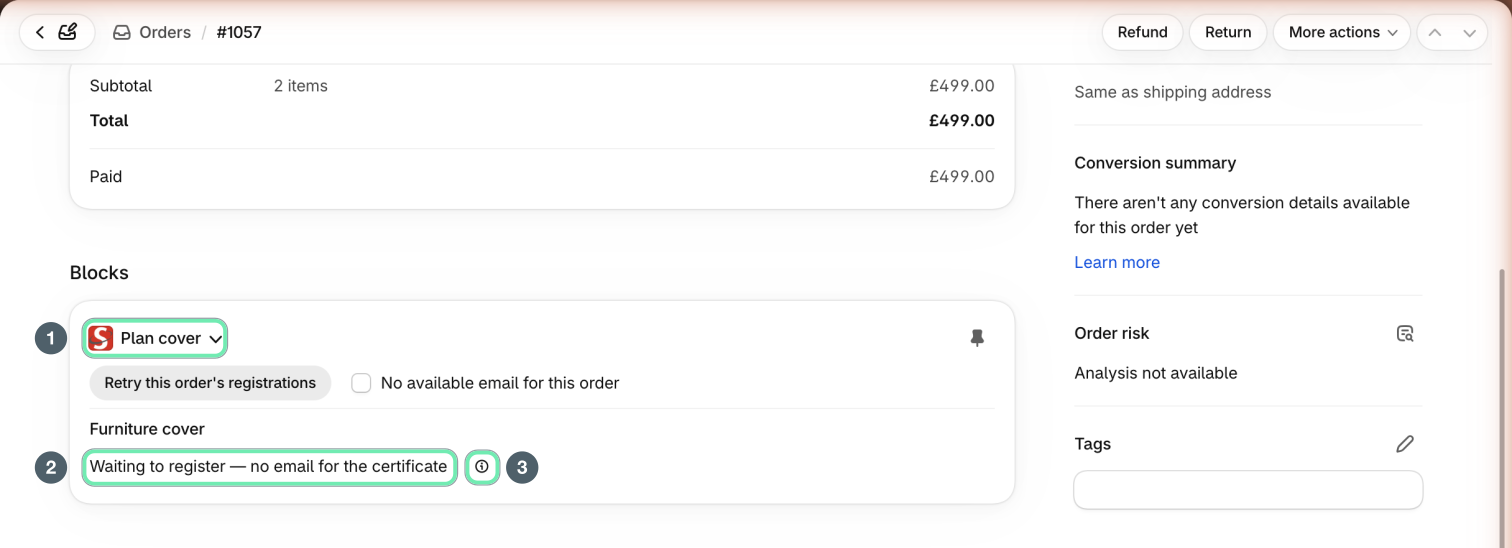
- Open the order in Shopify and find the Plan cover block. It's headed 1 issue, or the number of issues.
- Read the line under the category heading. It starts Waiting to register and names what's missing.
- Select More information beside it. The tooltip says why Staingard needs the thing and what clears it.
The block checks the order again every few seconds. A fix you make on the order page clears the hold without a reload. When another category on the same order has already registered, the block adds The rest of this order registered as normal.
The seven reasons
No delivery address, or the customer has no last name
The block says Waiting to register — no delivery address, Waiting to register — the customer has no last name, or Waiting to register — no customer address or last name.
Staingard registers cover against the address the goods go to, and files every registration under the customer's last name. A showroom or phone sale completed without a customer or a delivery address has neither.
- Add the delivery address, the customer's last name, or both to the order in Shopify.
- Wait a moment. The app sees the change and the plan registers on its own.
No email for the certificate
The block says Waiting to register — no email for the certificate. The customer's certificate is sent by email, so without one they'd never see it. Staingard itself doesn't need the email; the app waits so the customer isn't left without their certificate.
- Add the customer's email to the order in Shopify, and the plan registers on its own.
- For a counter or phone sale with no email, tick No available email for this order in the Plan cover block instead. On the Home row the same checkbox reads This sale has no email address.
One tick covers every plan on the order, including any added later. The block then reads Recorded: no available email for this order and The registration went ahead without one. The customer gets no copy of their certificate, so tell them Staingard holds it.
Waiting for the balance to be paid
The block says Waiting for the balance to be paid. Cover registers at the price the customer actually pays, so the app waits until the order is paid in full.
A deposit order needs nothing from you. Take the balance as usual and the plan registers on its own.
A cash sale where your staff took the money but never marked the order as paid in Shopify waits for ever. Mark it as paid and the plan registers. These orders raise no toast, so check the Awaiting payment tile on Home now and then.
A covered item has no unit count
The block says Waiting to register — a covered item has no unit count and names the product. Staingard records how much of each covered item there is: seats, square metres or items.
- Open the product in Shopify and set Material, and Unit count where it applies, in the Staingard Plan Cover block. See Or set it on the product itself.
- Back on the order, select Retry this order's registrations. A product change doesn't retry the order by itself.
No Staingard deal covers this value
The block says Waiting to register — no Staingard deal covers this value, with the category and the covered total. Staingard registers each category against a deal band, and none of your bands reaches that amount. See Staingard's deal bands.
- Email Staingard and ask them to extend your deals for that category.
- Once they confirm, select Retry this order's registrations on the order.
This location has no Staingard store
The block says Waiting to register — this location has no Staingard store and names the Shopify location. Every registration is filed against a Staingard store, and that location isn't matched to one yet.
- Add the location's Staingard store ID on Store locations. See Map your store locations.
- Back on the order, select Retry this order's registrations. A mapping change doesn't retry the order by itself.
Staingard hasn't set up this store yet
The block says Waiting to register — Staingard hasn't set up this store yet. Every registration needs your retailer ID, and only Staingard can give your store one.
- Email Staingard and ask them to finish setting up your store.
- Once they confirm, select Retry this order's registrations on the order.
Retry
Retry this order's registrations sits in the order's Plan cover block and in the Actions column of a Blocked row on Home. Use either.
- Fix what the block names.
- Select Retry this order's registrations.
The app reads the order again, checks every hold and sends the registration only if all of them have cleared. There's no way to force one through. It checks the whole order, so a row may appear or retire if the items on the order have changed. If the app says Couldn't retry this order. Nothing changed — try again., select it again.
An order more than about sixty days old can't be retried: the row says This order is older than Shopify lets the app read, so it can't be retried. Its status stays recorded here. See Too old to read.
When only Staingard can clear it
Your deals, your retailer ID and the connection itself are on Staingard's side. Email them, then select Retry this order's registrations once they confirm.
Rejected and Withdrawn aren't holds and no retry clears them. They're explained on An order hasn't registered.
Still stuck? Email Staingard at salesteam@staingard.co.uk.