
How a plan registers
When you fulfil an order that contains a plan, the app registers the cover with Staingard and the customer's certificate follows by email. There's nothing to do by hand. This page shows what you'll see on the order and on the app's Home screen.
One-minute video of this guide: From order to registered plan.
Fulfil the order as normal
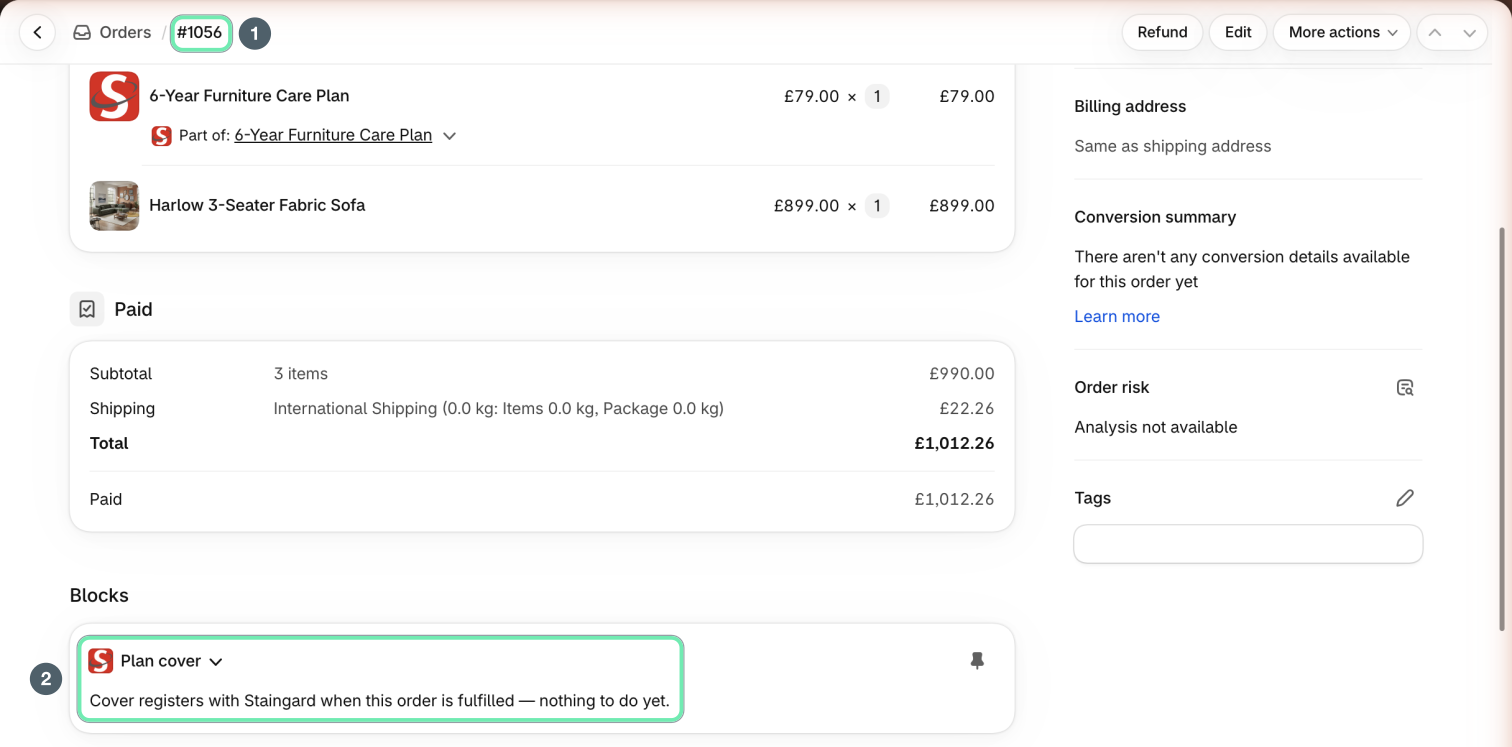
Staingard Protect registers a plan when the order is fully fulfilled, and the cover runs from the delivery date. Nothing on your side changes.
- Open the order in Shopify.
- Find the Plan cover block. Before fulfilment it reads Cover registers with Staingard when this order is fulfilled — nothing to do yet.
- Fulfil the order the way you normally do.
A partly fulfilled order shows the same line. The block checks the order again every few seconds, so it picks up the fulfilment without a reload.
Read the order's Plan cover block
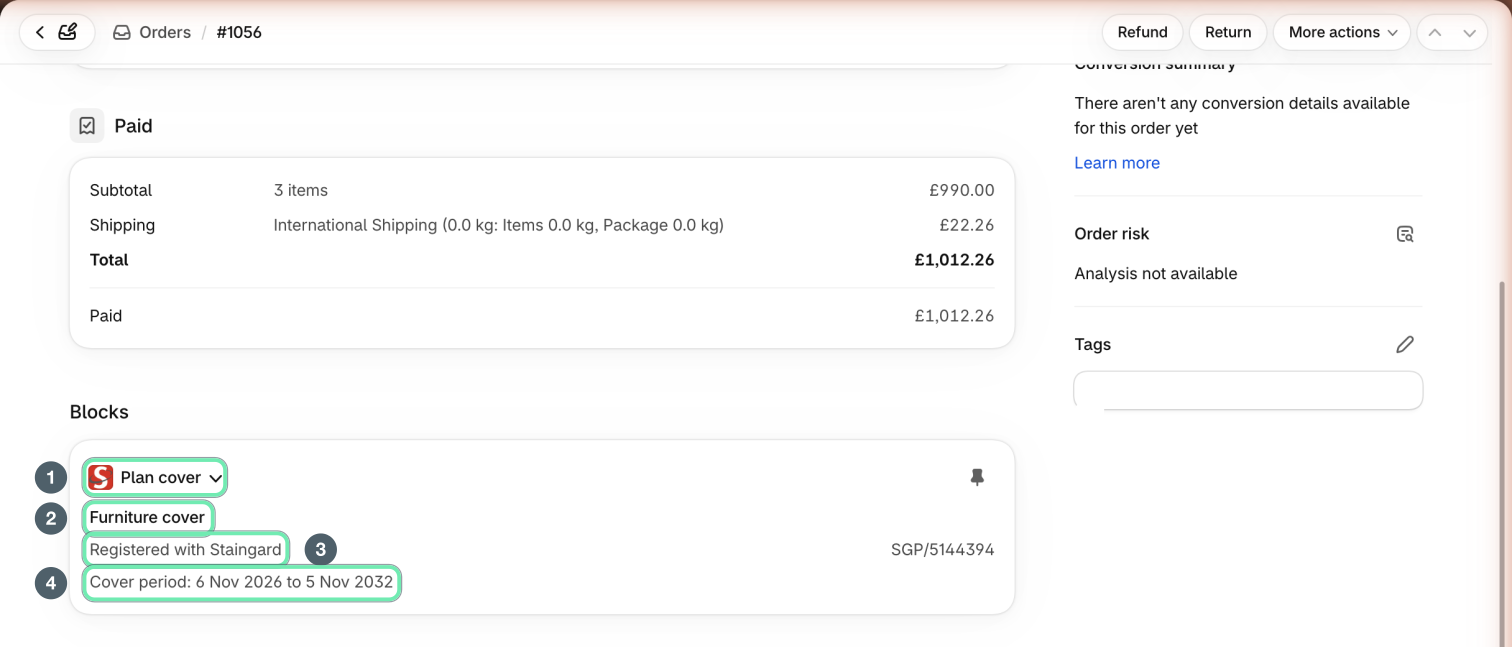
Once the order is fulfilled, the Plan cover block shows one heading per covered category, Furniture cover or Carpet cover, and under it:
- Registered with Staingard. The plan is registered and the customer's certificate is on its way.
- Cover period, with the start and end dates. Once the end date has passed, the line changes to Cover ended and the date.
- Staingard status appears instead of the cover period when Staingard is still reviewing the registration. That's rare, and nothing is needed from you.
While the registration is on its way the block says Registrations are processing — this will update in a moment. If it stays that way, see Still processing.
If the block says Couldn't load this order's cover details. Refresh the page to try again., the block couldn't reach the app. Refresh the page and it loads again.
Read the Home screen
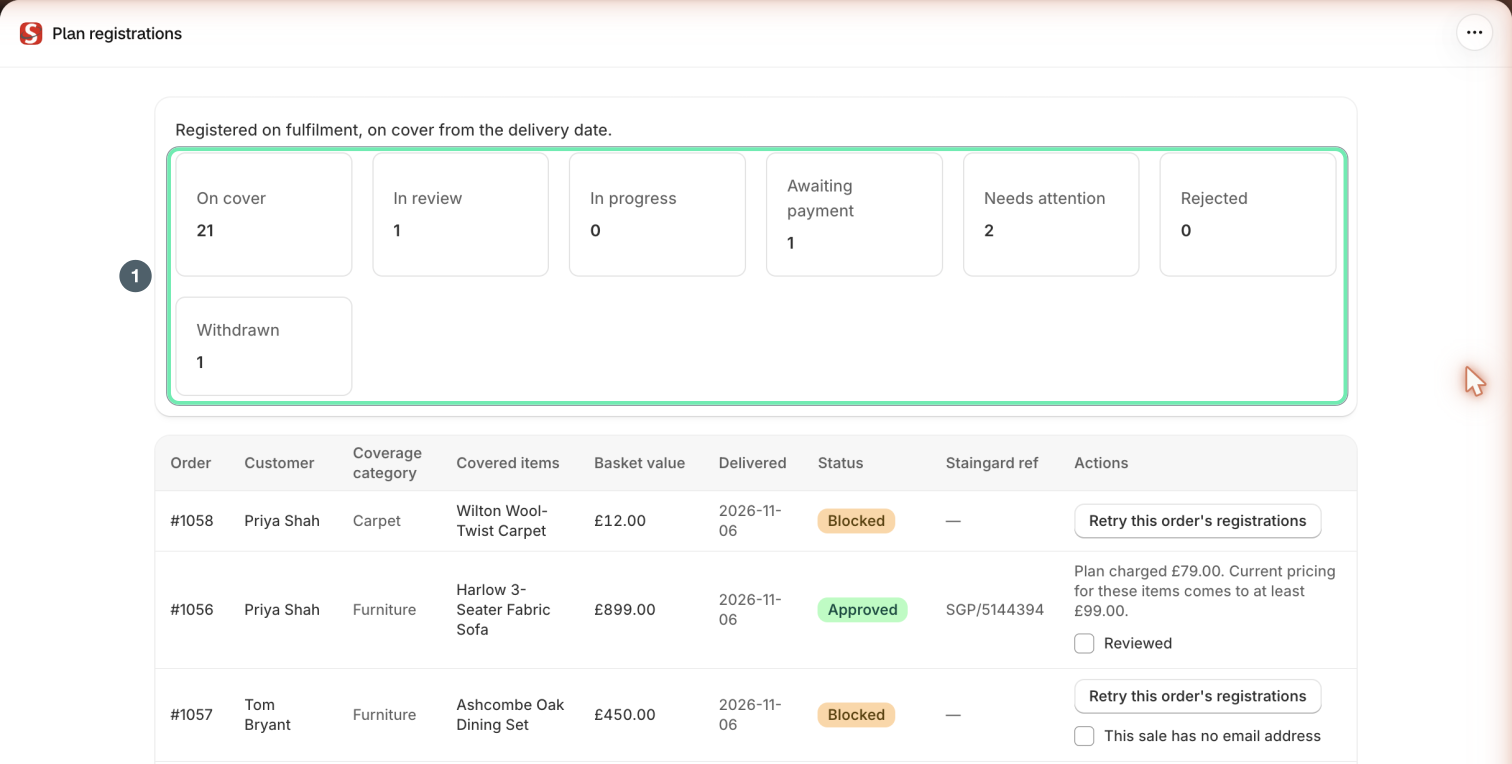
The app's Home screen is Plan registrations: every plan the app has handled, one row per covered category on an order. Seven tiles sit above the list, and between them they hold every registration, so the counts add up to the total.
Show one tile's rows
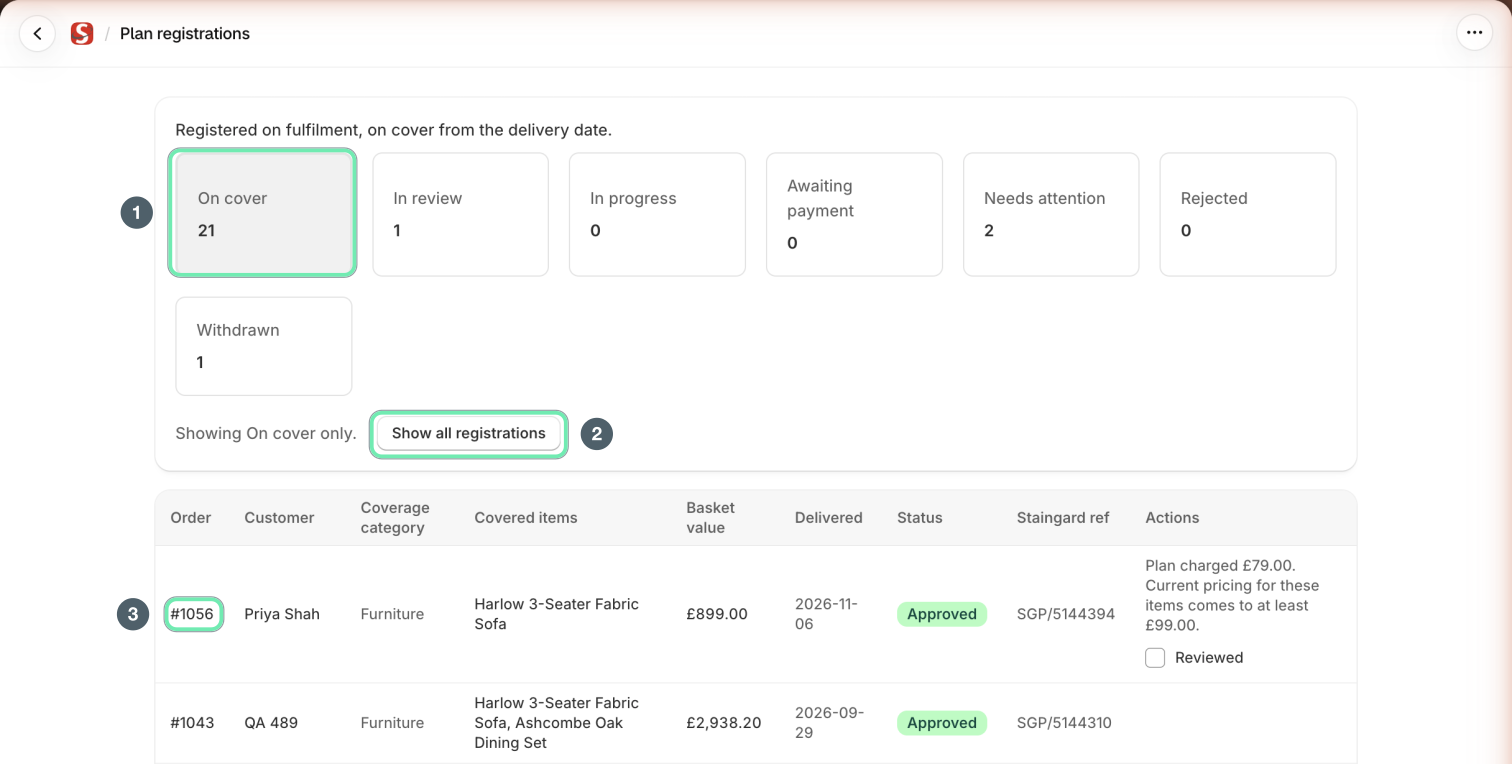
- Select a tile to show only its rows. The list says Showing On cover only.
- Select the tile again, or Show all registrations, to see everything.
- Select the order number in the Order column to open the order in Shopify.
Each row carries a badge in its Status column, Blocked or Succeeded for instance. The badges are explained where you act on them, under Find held orders. Until your first fulfilment the screen reads No registrations yet.
The Reviewed checkbox
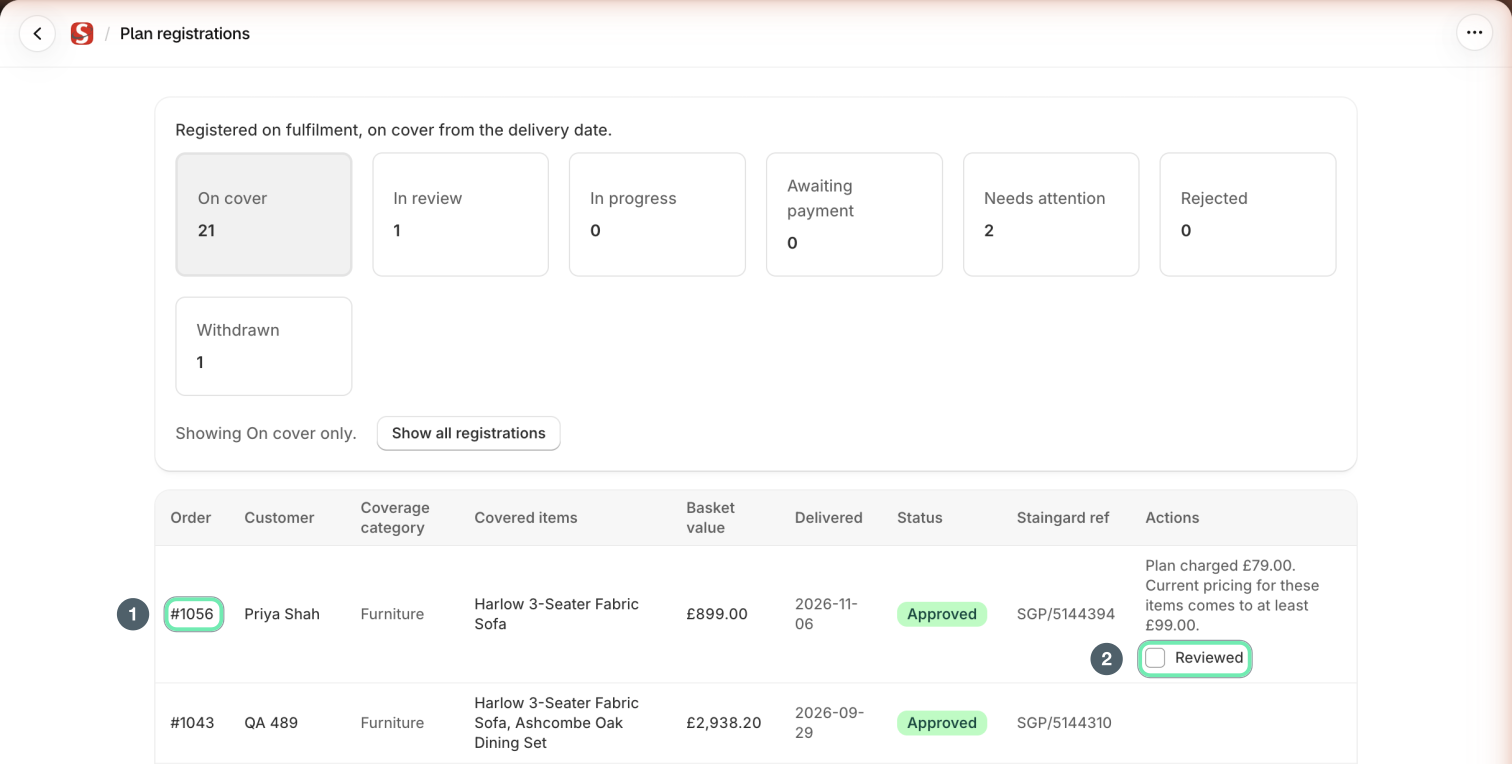
On an On cover row, the Actions column may carry a note like Plan charged £24.00. Current pricing for these items comes to at least £30.00. It means the customer paid less for the plan than your current pricing would charge for those items. The usual cause is a tier, rate or override raised while the customer's cart was open.
The registration isn't affected. The difference is your revenue, so it's yours to recover from the customer or let go.
- Open the order from the row and decide what to do about the difference.
- Tick Reviewed. The note stays on the row, marked as seen.
If the app says Couldn't record that. Nothing changed on this order — try again., tick it again.
Still stuck? Email Staingard at salesteam@staingard.co.uk.