
What your customers see
A walk through the plan offer as a customer meets it, with a sofa and a carpet in the cart: the card on the product page, the price in the cart, and checkout. Read this to know what normal looks like before you report a problem.
Two-minute video of this guide: The customer's view.
The offer card on a covered product
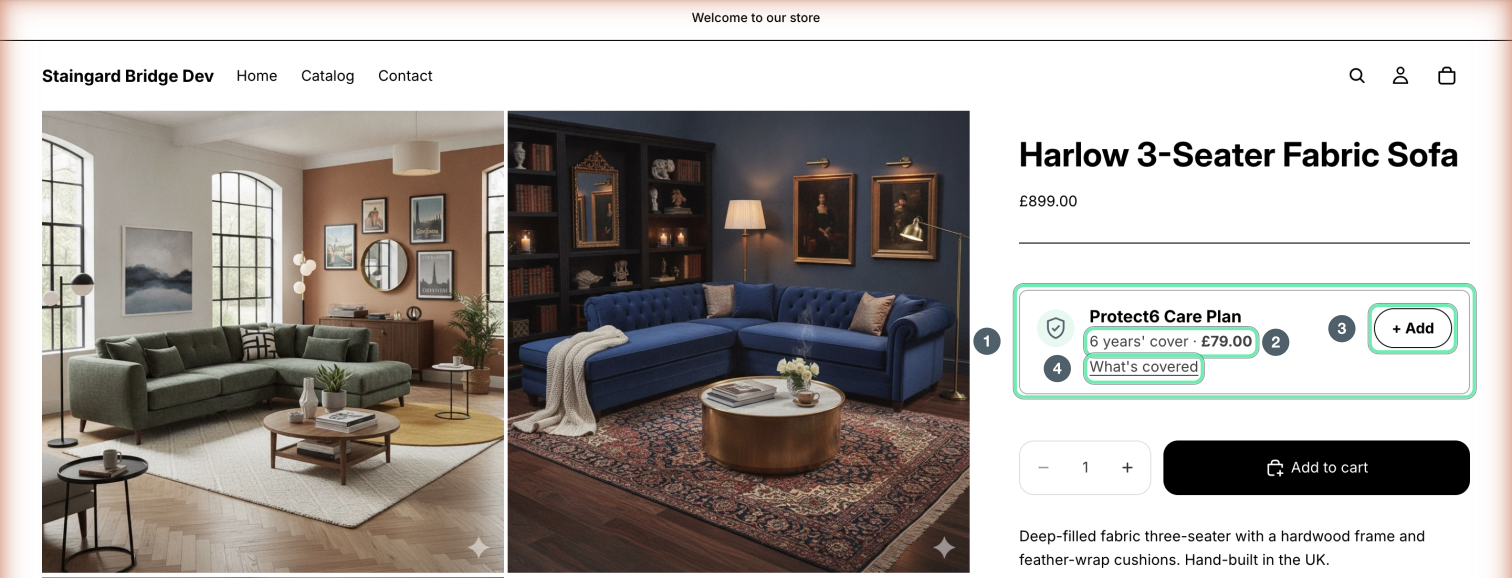
On a covered, priced product the Protect6 Care Plan card sits on the product page. It carries the Staingard Protect6 logo, the line 6 years' cover with the plan price beside it, a + Add toggle and a What's covered link.
The What's covered flyover
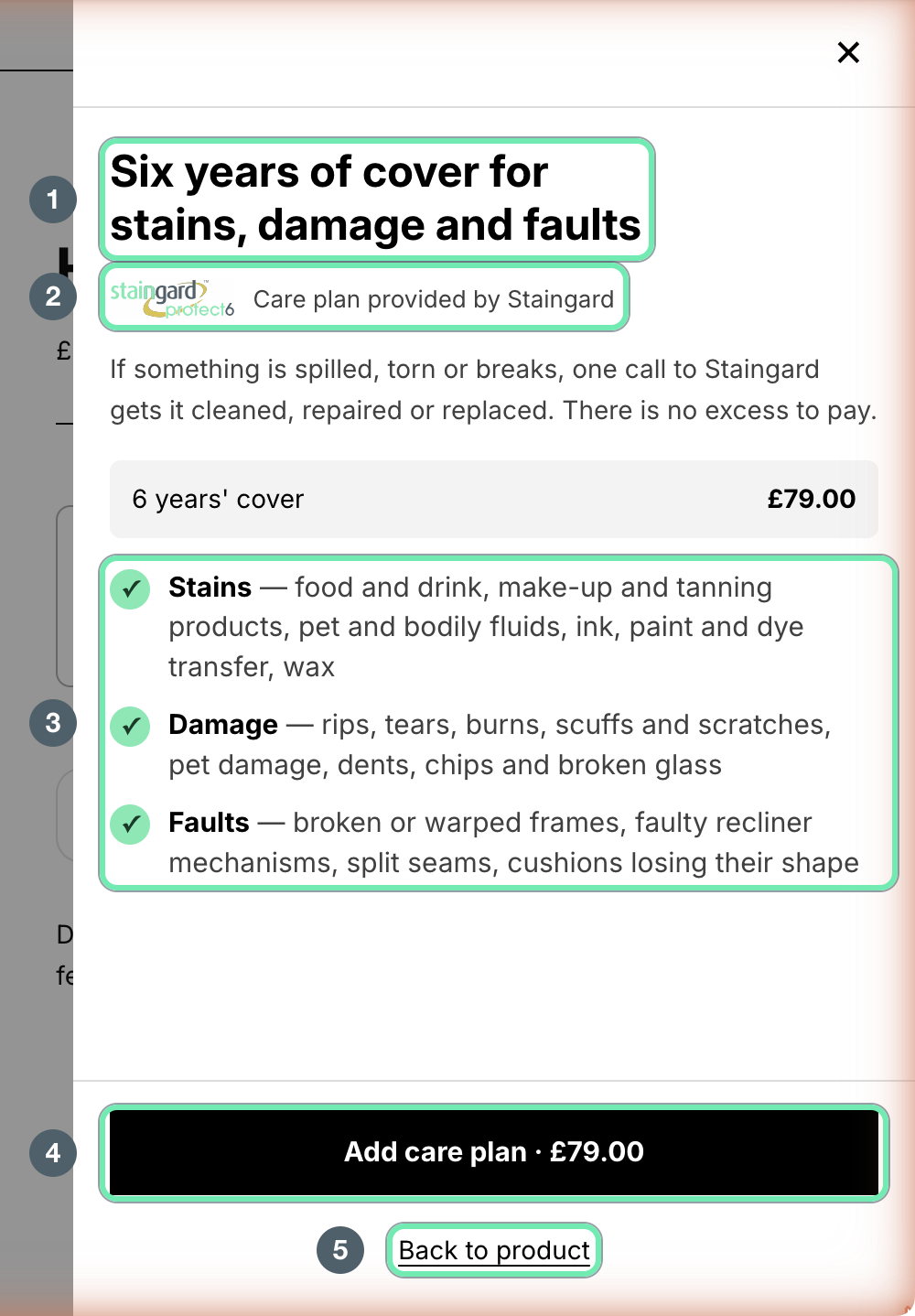
What's covered opens a flyover headed Six years of cover for stains, damage and faults, with Care plan provided by Staingard under it. It tells the customer that one call to Staingard gets a spill, tear or fault cleaned, repaired or replaced, with no excess to pay. It lists what counts under Stains, Damage and Faults. From the flyover they can select Add care plan with the price, or Back to product.
After the page loads, and after each change of size or quantity, the card briefly reads Checking cover for this size… while it asks the app for a price. If it stays that way, see The card is stuck on Checking cover for this size.
A product that isn't covered and priced shows no card at all, and the storefront never explains why. Why the storefront is silent says where to look.
Adding a plan
- The customer selects + Add. It becomes ✓ Added and the card takes a mint tint.
- They add the item to the cart as normal. The plan goes in beside it as its own line.
A customer who skips the card and goes straight to add the item is asked once. The flyover opens with two choices: Add to cart with care plan at the price, or Add to cart without it. Whichever they pick, the item is added, and the question isn't asked again on that page.
Some items can only be priced in the cart. A carpet sold by the square metre is the usual case. Its card has no toggle and reads Your plan price is shown in your cart. The customer adds the carpet as normal. In the cart the Protect your order panel offers its plan, and until the plan has a price its row reads Price shown in your basket. This is how the carpet is meant to work, not a fault.
The plan in the cart
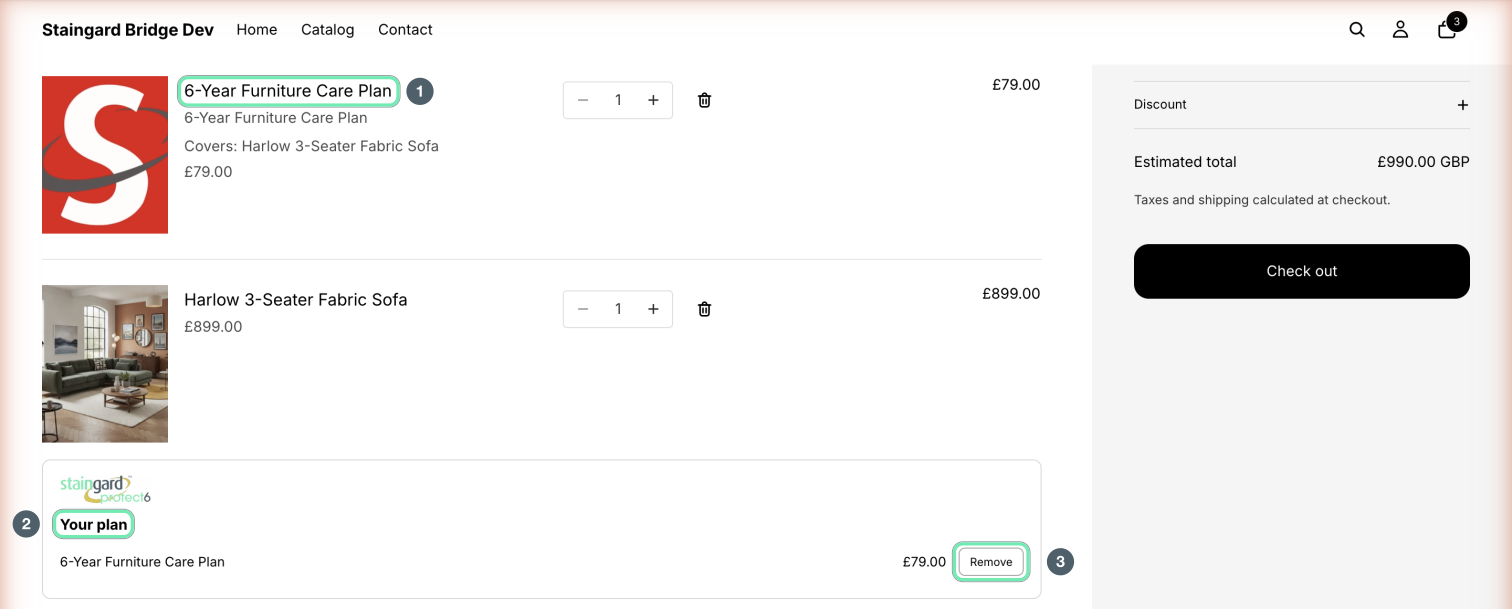
In the cart the plan is its own line, named 6-Year Furniture Care Plan or 6-Year Carpet Care Plan, at the price your settings gave it. Under it, the Protect your order panel shows the plan under Your plan with a Remove control, and the plan's price and count as a row.
Change the sofa's quantity and the plan follows it: two sofas, a plan that covers two. Remove the sofa and the plan goes with it, with a note to the customer: A plan disappeared from the cart. In a cart drawer, rather than on the cart page, this needs Plan cart sync on: Turn on Plan cart sync.
Two kinds of item, one plan each
With a sofa and a carpet in the cart, each has its own plan: one 6-Year Furniture Care Plan and one 6-Year Carpet Care Plan. A plan covers one kind of item, so a cart holding both kinds carries two plan lines, never one.
When the cart holds covered items that could be grouped under one plan per kind, the Protect your order panel changes its heading to Cover your whole basket. It reads One Plan for each type of item with the total and the saving. Where some items have no plan yet it adds This also covers items in your basket that have no Plan yet. The customer selects Cover my whole basket. The panel confirms Your basket is now covered with one Plan for each type of item. and the plan lines in the cart update. The saving is shown before they accept, so there is nothing to work out.
Away from the cart page, when combining would cost less, a small notice reads You could pay less by combining the Plans in your basket. with a See how in your basket link. It needs Plan cart sync on.
After that, the card on a second product of a covered kind no longer offers a plan. It shows one of three notes instead, and all three are normal:
- A Protect6 Care Plan for this kind of item is already in your cart. with a View cart link. The cart already holds a plan for that kind of item. A second one would charge the customer twice, so the card declines to offer it. They add the item; the plan in the cart covers it.
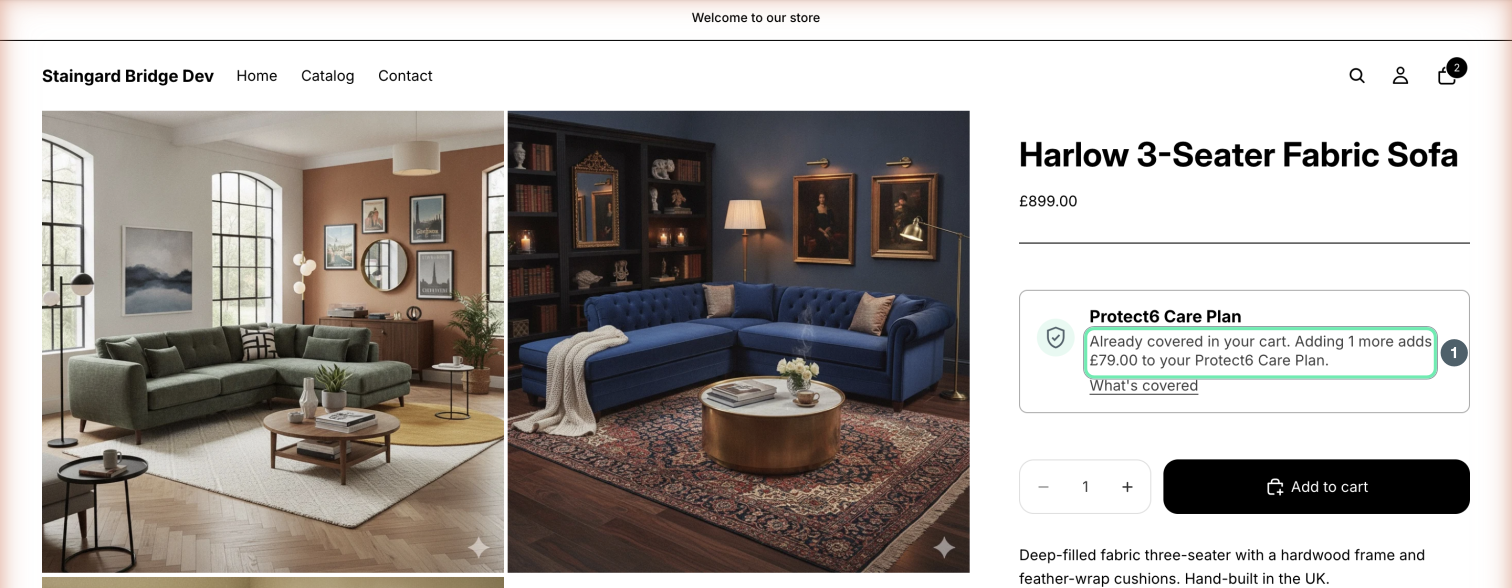
- Already covered in your cart. followed by what adding more adds to the plan. The customer is looking at an item their plan already covers, and the note prices the extra ones before they add them.
- Your basket's Protect6 Care Plan will cover this item. followed by either the updated plan price or The updated price is shown in your cart. The whole-cart plan will take this item in when it's added.
None of these needs anything from you. The plan and its price update in the cart as the items change.
Checkout
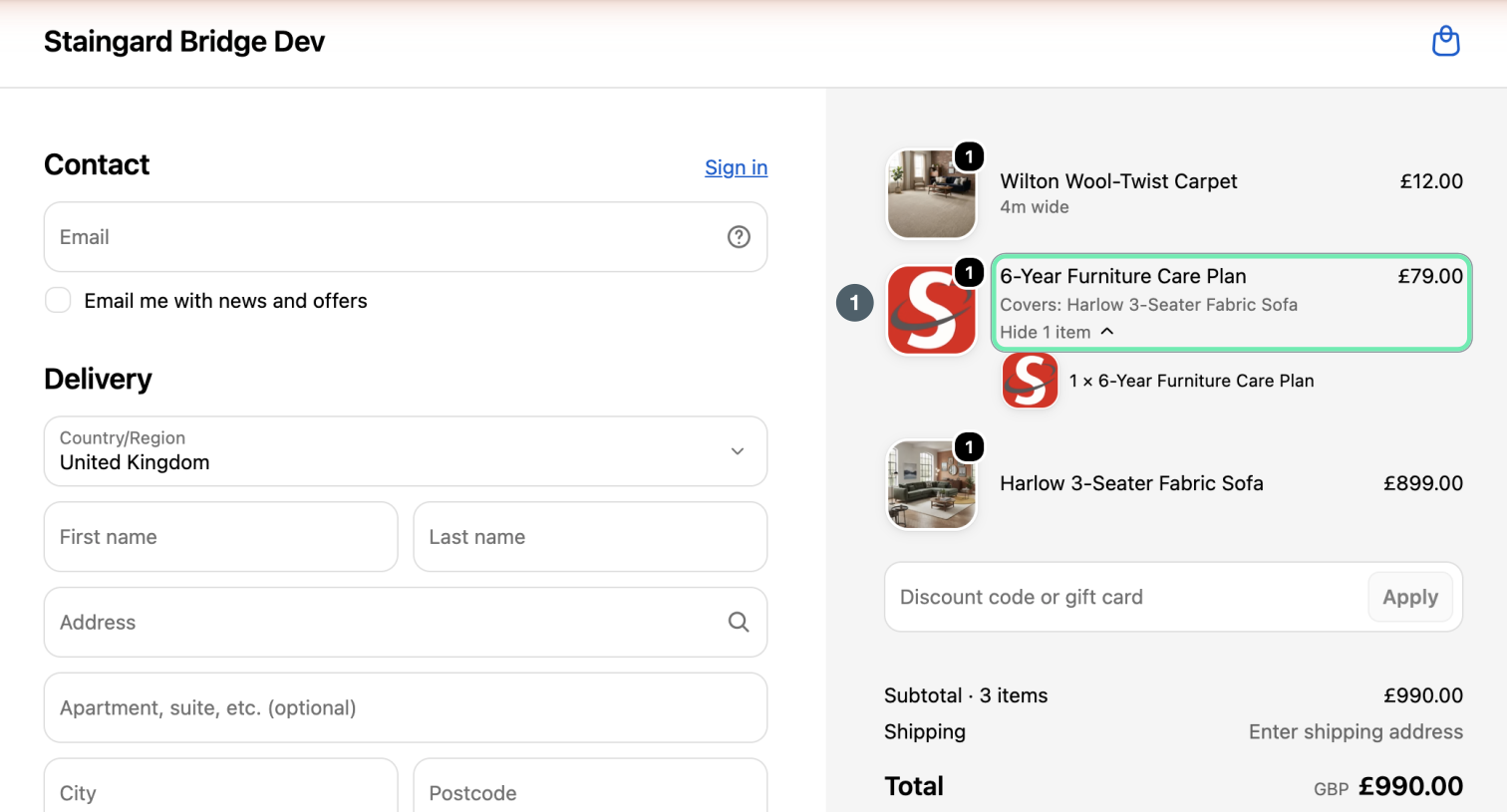
At checkout the plan is an ordinary line beside the goods. The customer pays for it with the rest of the order, and nothing else is asked of them or of you. The cover registers with Staingard when you fulfil the order: How a plan registers.
Two messages can stop a checkout, both naming the Protect6 Care Plan. If the plan reached checkout without a price, see Checkout blocked: the plan couldn't be priced. If the covered item changed after the plan was added, see Checkout blocked: the plan no longer matches the cart.
Still stuck? Email Staingard at salesteam@staingard.co.uk.