
Add the plan offer to your theme
Add the Plan offer block to your product page and the Basket plan block to your cart page in the theme editor, then turn on Plan cart sync. Without the blocks, customers never see a plan. The app's Home screen has a link that opens the editor ready for each step.
Two-minute video of this guide: Add the plan offer to your theme.
Start from Home
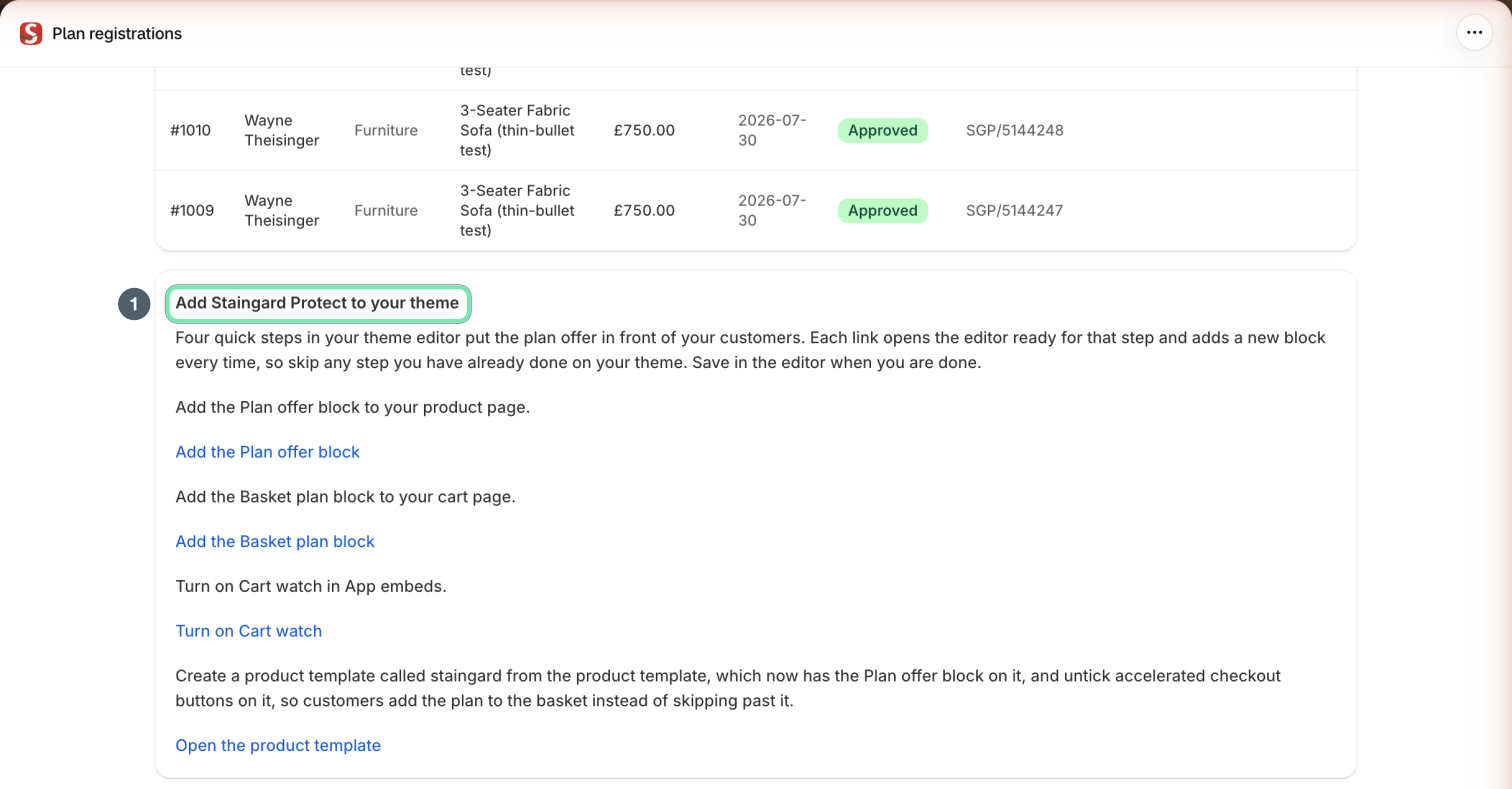
Shopify never adds an app's theme blocks for you, and app embeds start switched off. Until the four steps on this page are done, the plan offer appears nowhere on your storefront, however many products you've covered and priced.
- Open the app. Once your store is linked, Home shows the card Add Staingard Protect to your theme.
- Read its four steps. Each has a link that opens the theme editor at the right place, and each is a section below.
One warning before you start. Every link adds a new block each time you select it, so a second click leaves a duplicate on your theme. Skip any step you've already done, and save in the editor when you've finished.
Create the staingard product template
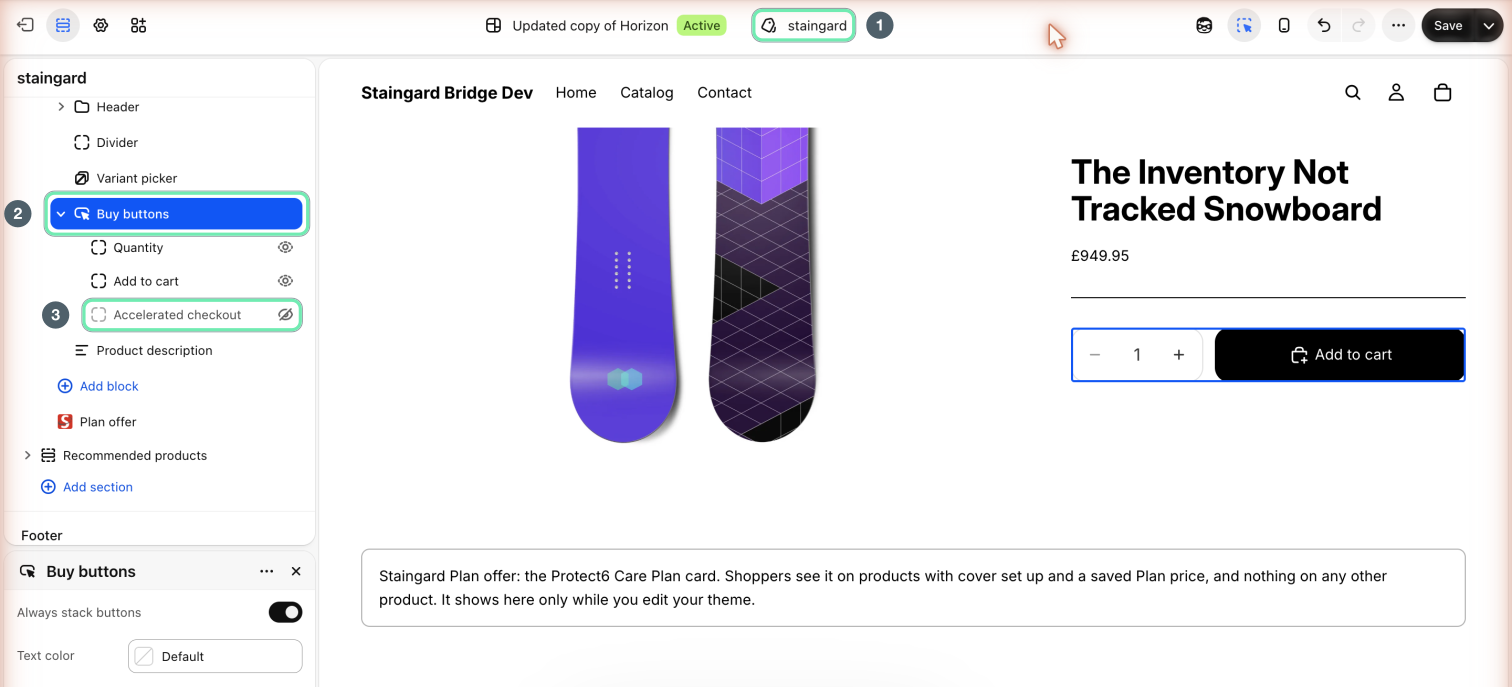
Covered products live on a product template called staingard, which hides Shopify's Buy it now button. Hide Buy it now with the staingard template explains why the button has to go.
- On Home, select Open the product template. The theme editor opens on your product template.
- In the editor's template menu at the top, create a new product template from it and name it
staingard, all lowercase. The app looks for that exact name. - On the new template, open the buy buttons block and untick the setting that shows accelerated checkout buttons. Buy it now disappears from the preview.
Moving your covered products onto the template is done in the app, not the editor: see Hide Buy it now with the staingard template.
Add the Plan offer block
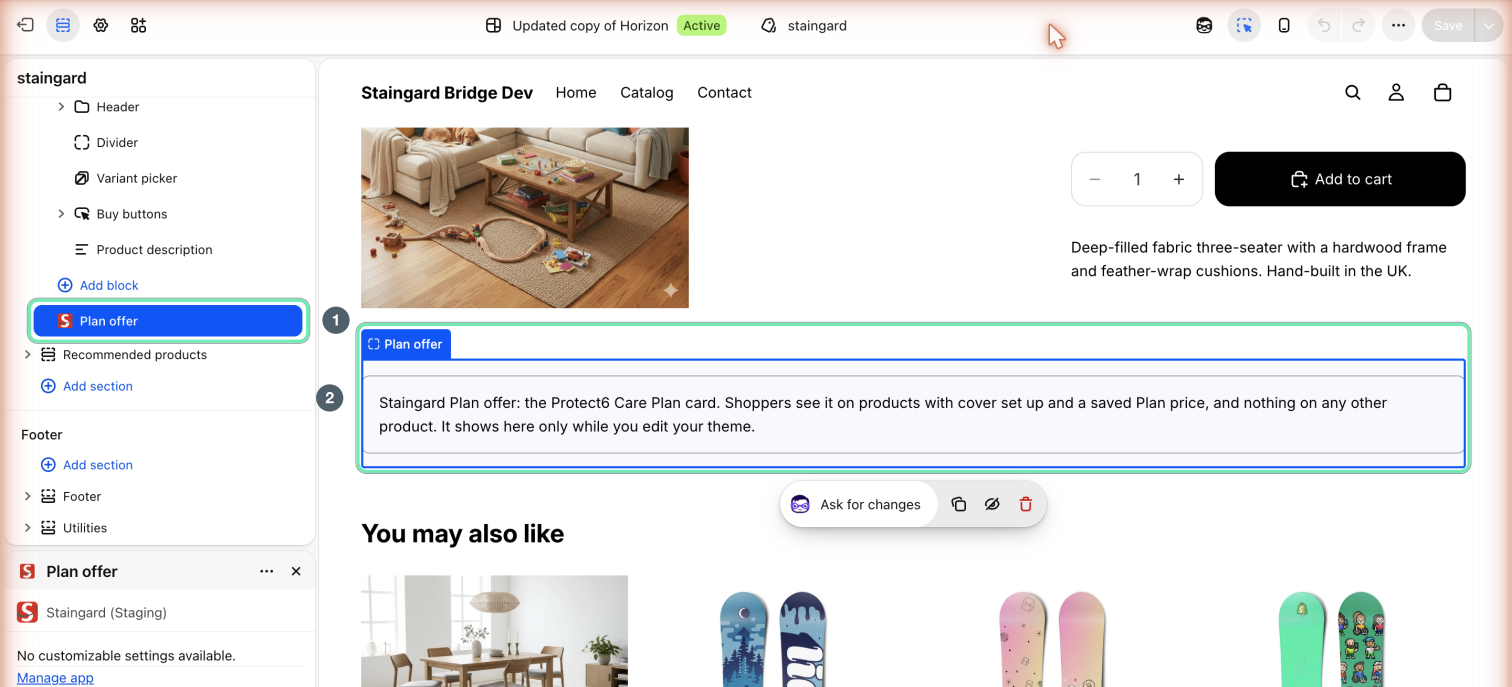
- On Home, select Add the Plan offer block. The editor opens on the
staingardproduct template with the Plan offer block already placed. If a block is already there from the last step, skip this one. - Drag the block to where the card should sit, near the add-to-cart button, so a customer sees it before they add the item.
While you edit, the block shows a placeholder card. It starts Staingard Plan offer: the Protect6 Care Plan card. and goes on to say where customers will see it. Customers never see the placeholder. On a product that isn't covered and priced the card shows nothing at all, and the storefront doesn't say why. Why the storefront is silent says where to look.
Add the Basket plan block
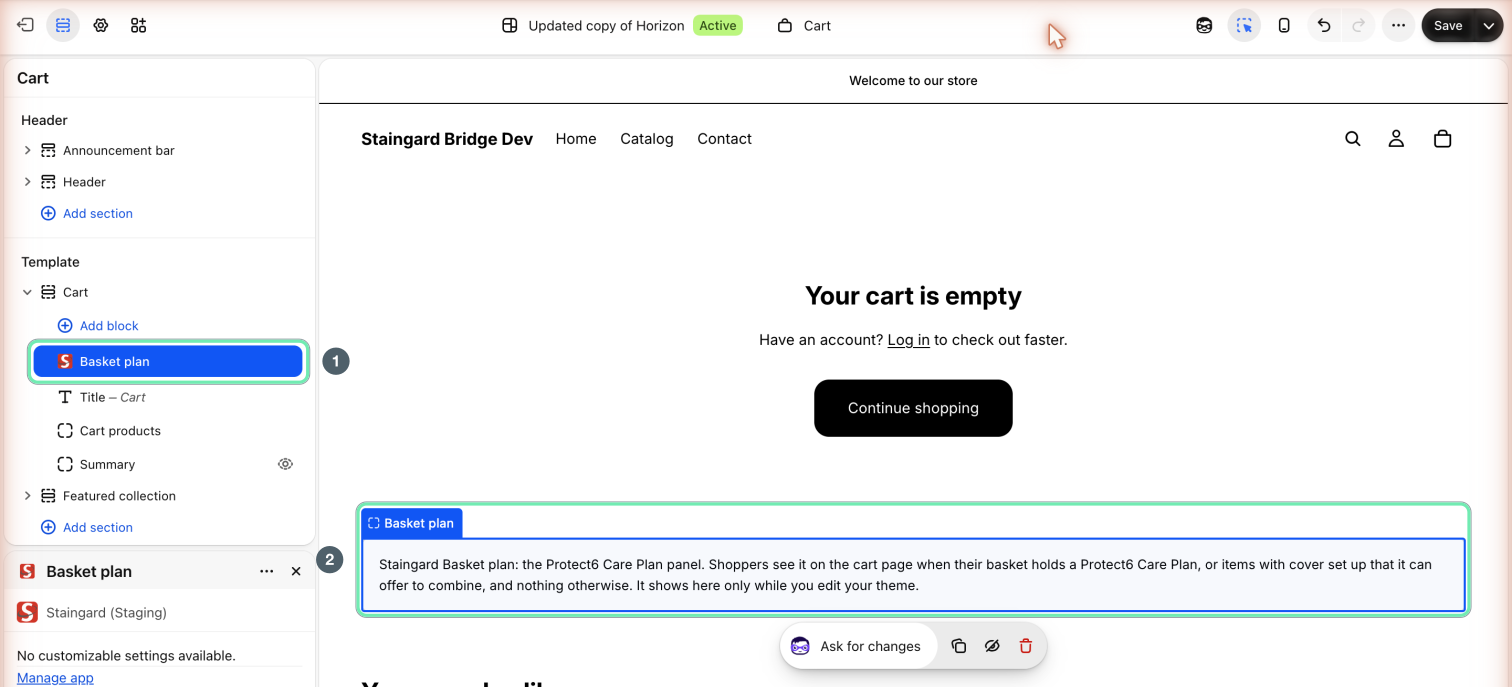
- On Home, select Add the Basket plan block. The editor opens on your cart template with the Basket plan block already placed.
- Drag the block to where the panel should sit, near the cart's subtotal.
The editor shows its placeholder too, starting Staingard Basket plan: the Protect6 Care Plan panel. On the live store the panel appears only when the cart holds a plan, or items with cover set up that it can offer to combine. Otherwise it shows nothing.
The block can only go on the cart page. A theme's cart drawer takes no app blocks, which is why the next step exists.
Turn on Plan cart sync
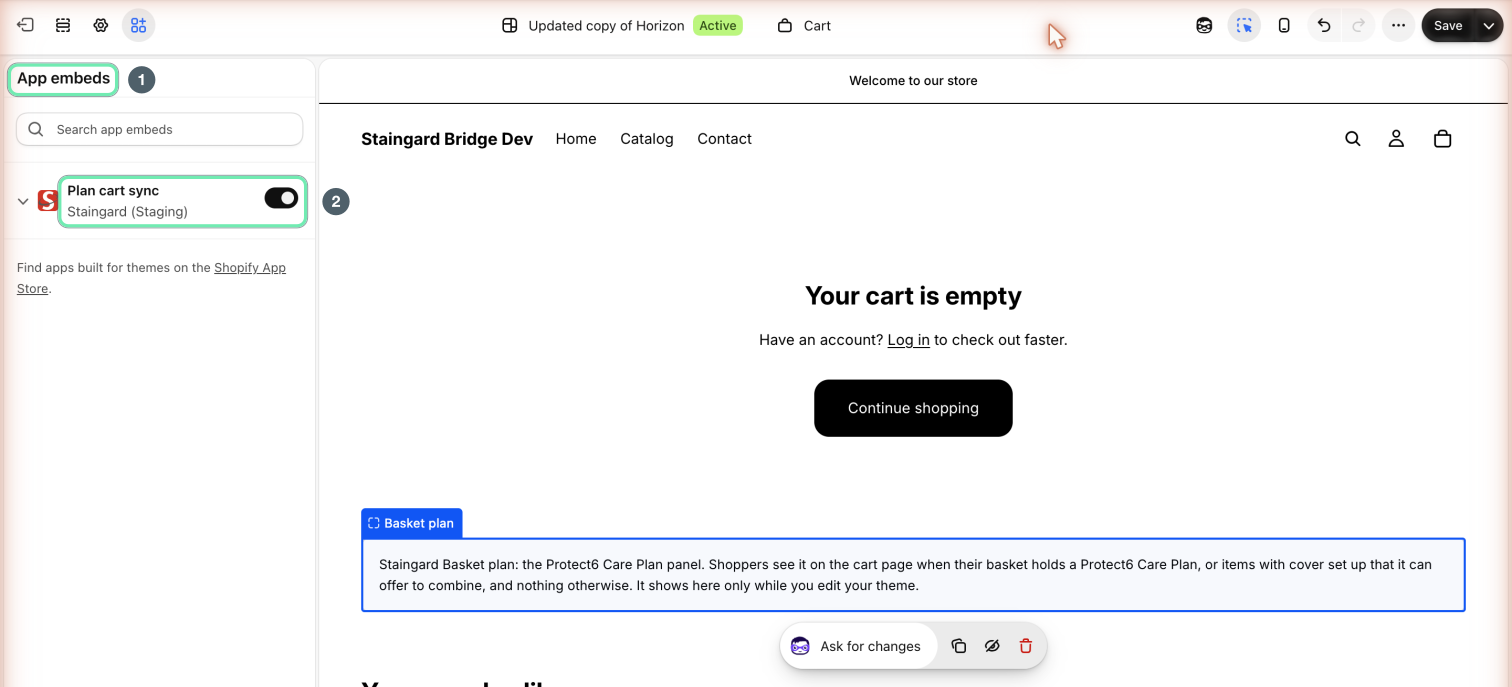
- On Home, select Turn on Cart watch. Cart watch is Home's name for this embed; the editor calls it Plan cart sync. The editor opens on App embeds.
- Turn on Plan cart sync.
- Leave Cart section ids to refresh empty. It's only for themes that aren't based on Dawn or Horizon, and the field's own note says what to enter.
Why this matters. The Basket plan block lives on the cart page, and nowhere else. Without the embed, a customer can change or remove a covered item in the cart drawer and go straight to checkout. The plan then no longer matches what's in the cart, and checkout stops them there: Checkout blocked: the plan no longer matches the cart.
With Plan cart sync on, the app checks the cart on every page, after every change. A plan follows its item's quantity. A plan whose item has gone is removed, with a note to the customer: A plan disappeared from the cart. The customer reaches checkout with a plan that matches.
Save and check
- Save the theme in the editor. Nothing you've placed is live until you do.
- Open a covered, priced product on your storefront. The Protect6 Care Plan card should show on the page, with + Add and What's covered.
- Add the item to the cart. The plan appears as its own line beside it.
What your customers see walks through what you should get from here, card to checkout. If the card doesn't show, start at The plan offer isn't showing.
Still stuck? Email Staingard at salesteam@staingard.co.uk.