
Choose which products to cover
Turn the plan offer on for a product on the Product coverage screen, or in the Staingard Plan Cover block on the product itself, and give it a Coverage category and Material. A product with no category never shows the offer.
Two-minute video of this guide: Choose which products to cover.
Open Product coverage
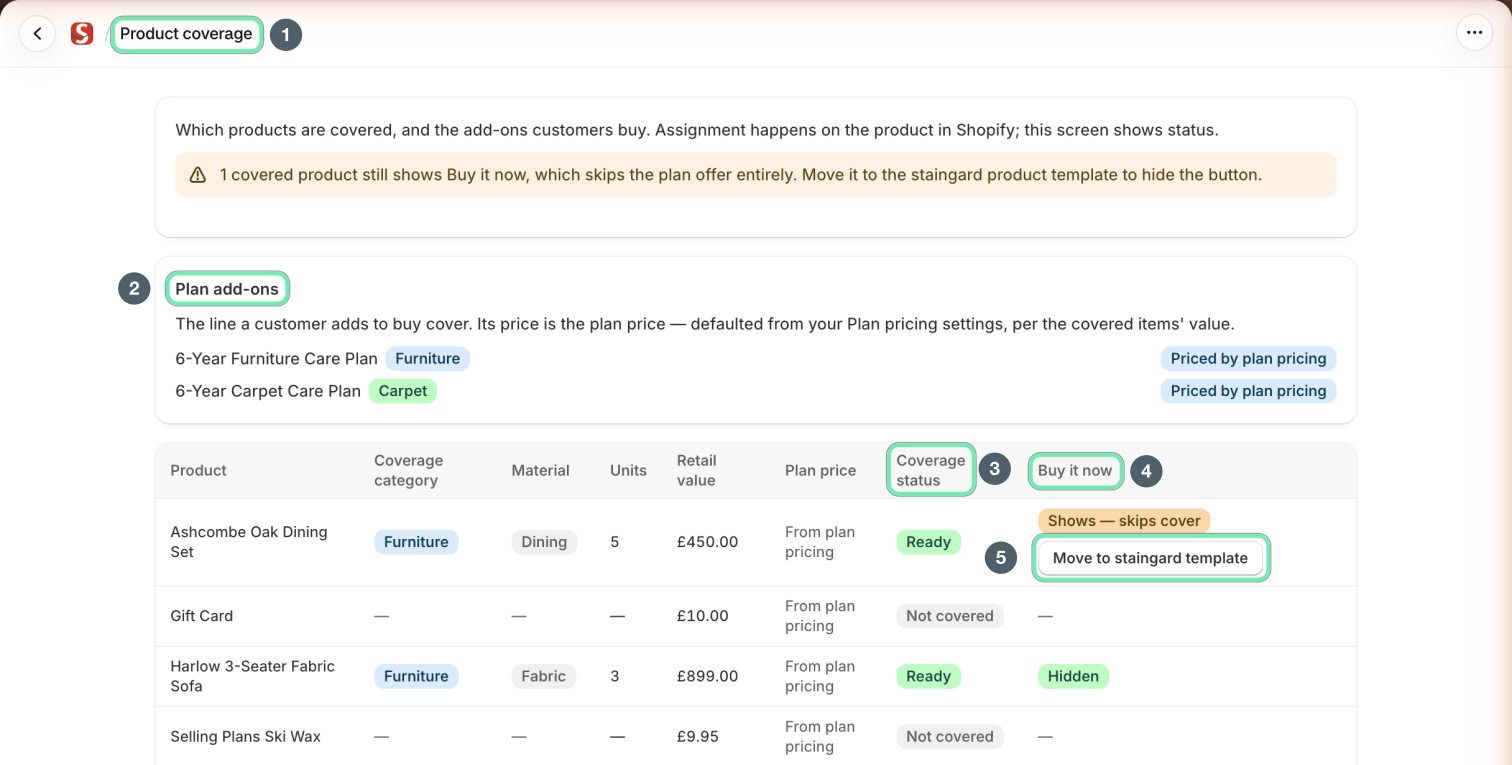
Select Product coverage in the app's menu.
The screen is a status table. Each of your products has a row with its Coverage category, Material, Units, Retail value, Plan price, Coverage status and Buy it now state. Cover itself is set on the product in Shopify, in the block the next section describes; this screen shows you where every product stands. Above the table, Plan add-ons lists the two plan products customers buy. If it reads No plan add-on products yet, run Install the add-on products first.
The table shows the first 100 products. If your store has more, a banner reads Showing the first 100 products only — this store has more. Products beyond the first 100 are not listed here, but their coverage still works. Cover on those products works exactly the same; to check one, open it in Shopify and read the summary on its Staingard Plan Cover block.
Turn cover on for a product
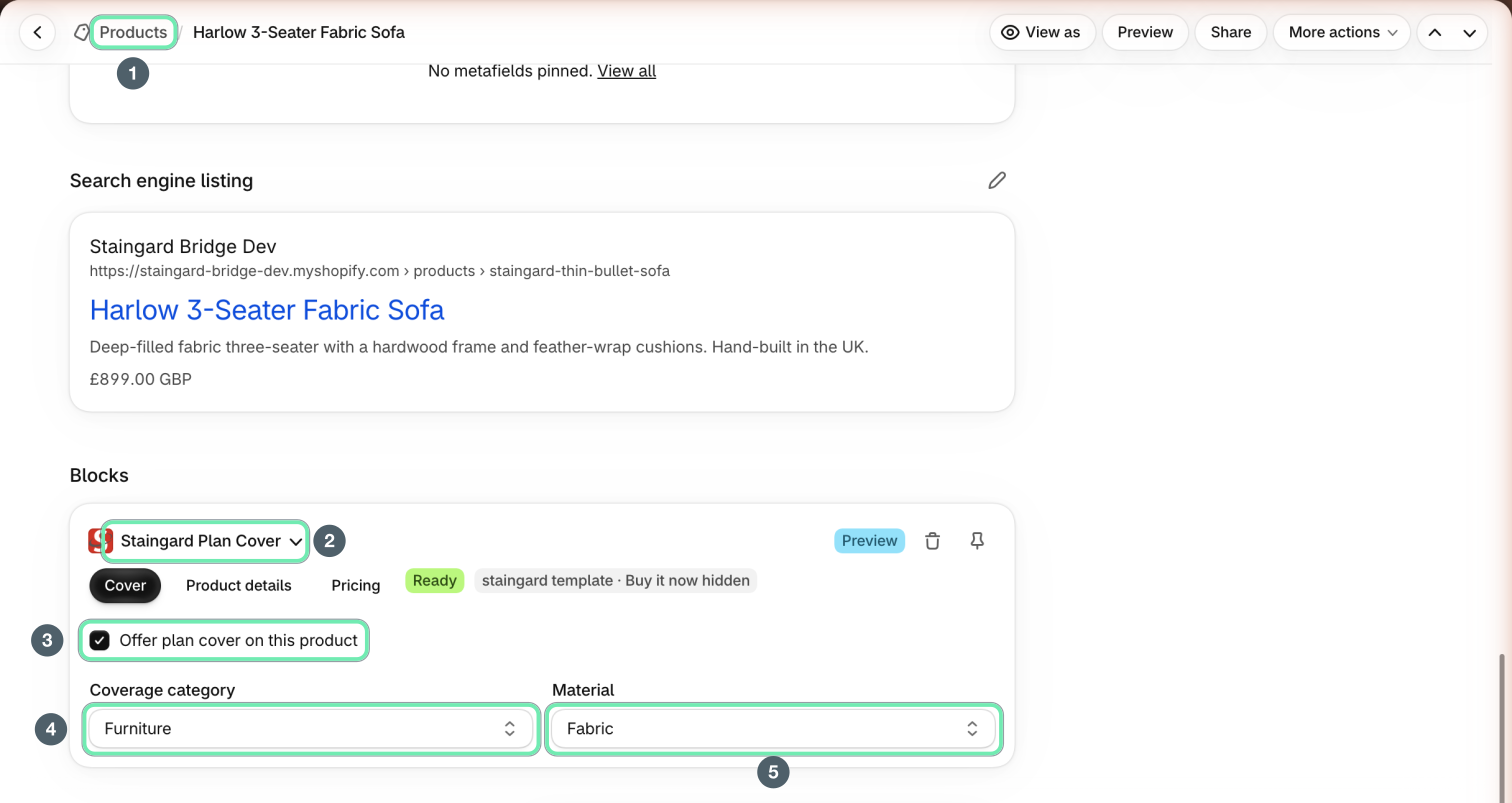
- In Shopify, open Products and open the product.
- Find the Staingard Plan Cover block on the product page.
- Switch on Offer plan cover on this product.
- Under Coverage category, choose Furniture or Carpet.
- Under Material, choose Fabric, Mattress, Carpet or Dining.
- Select Save.
Back on Product coverage, the product now reads Ready. Switching cover on also moves the product onto the staingard product template, if you've created it; the section on
The block has other fields too: Supplier, Model, Unit count, Roll width (m) and Colour. Unit count matters most. Staingard records how many seats, square metres or items a plan covers. An order whose covered item has no unit count waits until it's set (A covered item has no unit count). If you sell carpet by the linear metre, set Roll width (m) so the covered area comes out right; leave it blank if you sell by the square metre.
Read the status column
Coverage status says whether the offer will show on that product:
- Ready. Cover is on, with a category and a material. The offer shows once a price is saved on Plan pricing.
- Sells — held until material set. Cover is on and the offer sells, but the product has no material, so every registration from it waits until you set one. The Material column reads Set material, and a banner counts the products: 1 product is covered and will sell cover, but it's missing a material — so its registrations are held until you set it. Set the material on the product in Shopify to clear the hold. Set Material in the block, then retry any order already waiting.
- Won't appear. Cover is on but there's no Coverage category, so the offer never shows for this product. Choose a category in the block.
- Not covered. Cover is off. If this product should sell a plan, switch on Offer plan cover on this product (
Turn cover on for a product ).
The block's own summary line says the same in its own words: Ready, Held — set material, Hidden — set category and Cover not offered.
Hide Buy it now with the staingard template
The Buy it now column reads Hidden or Shows — skips cover. Buy it now and the other accelerated checkout buttons take the customer straight from the product page to checkout, past the cart. The plan lives in the cart, so a plan the customer accepted on the product page is dropped. While any covered product still shows the button, a banner counts them: 1 covered product still shows Buy it now, which skips the plan offer entirely. Move it to the staingard product template to hide the button.
The fix is a product template called staingard with its accelerated checkout buttons unticked. You create it in the theme editor (Create the staingard product template); the app can't write to your theme. Then move each covered product onto it, either way:
- On Product coverage, select Move to staingard template on the product's row. The toast Moved to the staingard product template confirms it.
- Or on the product page in Shopify, set Theme template to
staingardand save.
If the first way answers Couldn't move the product to the staingard template — try again, or set its theme template to staingard on the product page., use the second. The block's template line shows where a product stands: staingard template · Buy it now hidden or Default template · Buy it now shows.
Or set it on the product itself
Everything above is also on the product page's Staingard Plan Cover block, which is where you land when editing one product. Its summary line gives the product's state before you open it, and the Cover, Product details and Pricing panes hold the fields.
While it reads Loading cover settings…, wait a moment. If it says Couldn't load the plan cover settings. Refresh the page to try again. or Couldn't save the plan cover settings — your other product changes may still have saved. Try again., the block couldn't reach the app. Refresh the page and try again; any other changes you made to the product may already have saved. On a plan product itself the block reads This is your plan add-on and explains that its price is the plan price: cover settings belong on the products it covers, not on the plan.
Plan price override
Plan price override, in the block's Pricing pane, sets this one product's plan price in GBP, whichever pricing mode you use on Plan pricing. Leave it blank to price the product from your Plan pricing settings. An override set on a variant's page wins for that variant.
If Product coverage shows Override ignored in the Plan price column, the value isn't a valid GBP amount, and a banner says so: 1 product has a plan-price override that isn't a valid GBP amount, so it's ignored and the product prices from your Plan pricing settings. Re-enter the override in GBP on the product in Shopify. Open the product and re-enter the amount as a plain number in pounds.
Still stuck? Email Staingard at salesteam@staingard.co.uk.