
Install the add-on products
Run the Setup screen once. It creates the two plan products your customers buy, checks the Online Store channel, and installs the coverage fields your products use. Do this before you cover any product, or the offer has nothing to sell.
One-minute video of this guide: Install the add-on products.
Open Setup
Select Setup in the app's menu.
Home sends you here as well. While either plan product is missing, Home shows the card Plan add-on products aren't installed, with the line Cover can't be added to a basket for these categories until their add-on products exist: and the categories affected. Its Install add-on products button opens this screen. The Product coverage screen says the same thing under Plan add-ons: No plan add-on products yet. Open the Setup screen and press Install add-on products to add them. Both clear once the step below has run.
You'll also see that card after a reinstall, because Shopify removes the app's product settings some time after an uninstall (What the app keeps). Reinstalling covers what to expect.
Install the add-on products
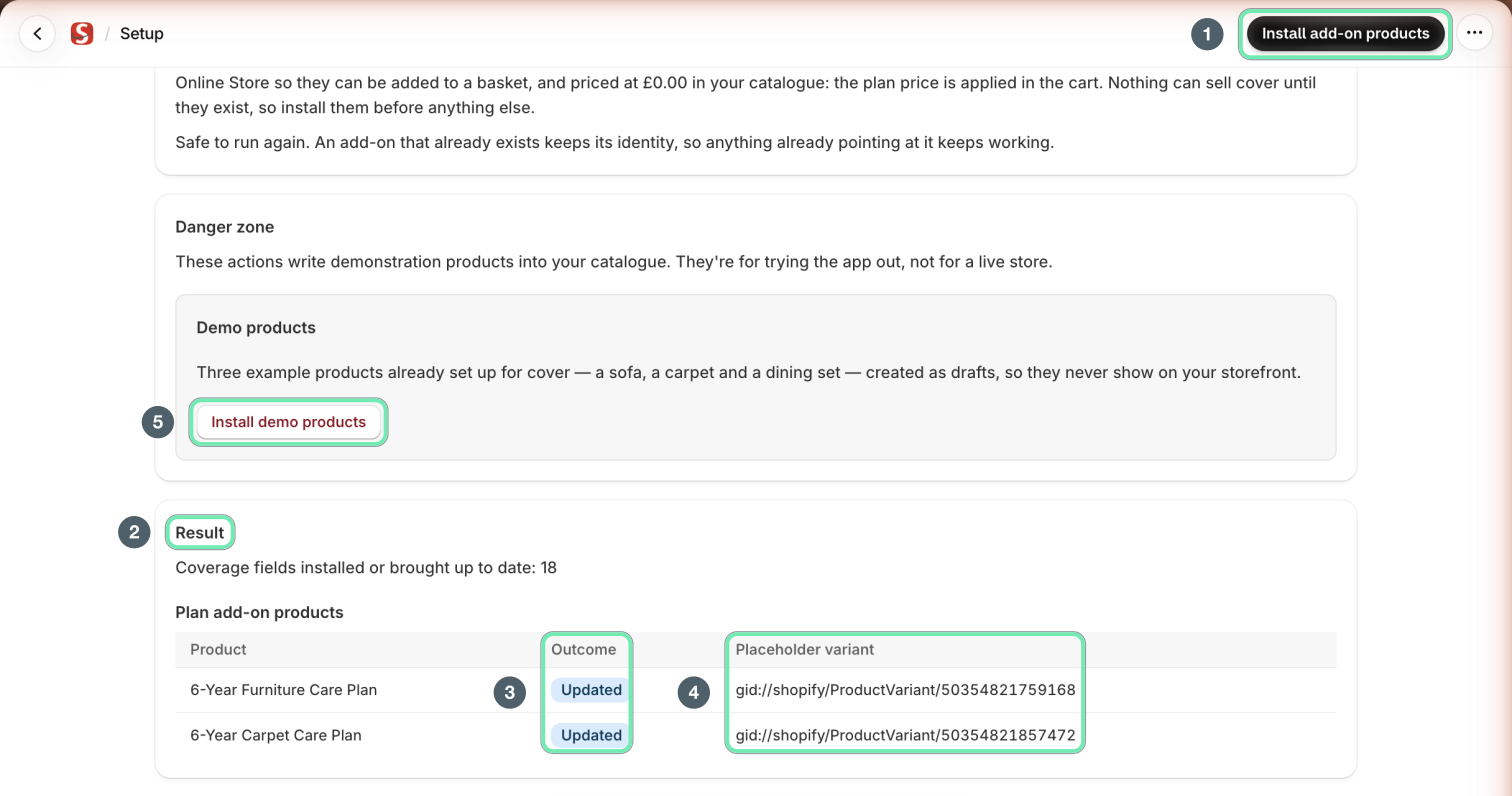
- Select Install add-on products.
- Wait for the toast Add-on products installed.
What the step creates
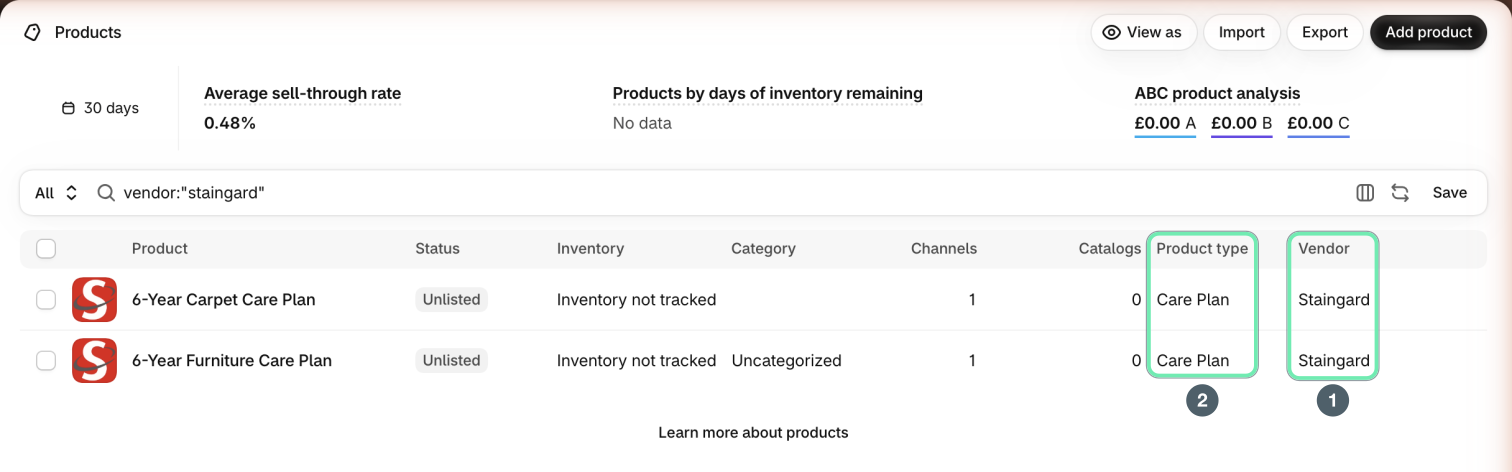
Two products appear under Products in Shopify: 6-Year Furniture Care Plan and 6-Year Carpet Care Plan. Filter the list by Vendor Staingard or Product type Care Plan to find them. They're hidden from your storefront's browse and search, published to your Online Store so they can be added to a cart, and priced at £0.00 in your catalogue. The plan price is applied in the cart, so nothing sells until you set your plan prices.
The step is safe to run again. A plan product that already exists keeps its identity, so anything already pointing at it keeps working.
Setup also installs the coverage fields the Staingard Plan Cover block uses on your products. It doesn't touch your theme: the staingard product template, which hides Buy it now on covered products, is made in the theme editor later (Create the staingard product template). Hide Buy it now with the staingard template explains what it's for.
Check every row
A Result section appears when the run finishes. Read it top to bottom:
- Coverage fields installed or brought up to date, with a count.
- Plan add-on products: one row per plan product. Outcome reads Created the first time and Updated on every run after that. Placeholder variant is the id of its £0.00 variant, the line every plan sits on in a cart.
- Demo products appears only after
Install demo products has run.
If the toast reads That step didn't complete — see the details on this page, the section is headed That step didn't complete instead, and the line under it says which of these it was.
Shopify didn't accept the change. Earlier steps may already have completed, and it's safe to run this step again. If it keeps happening, contact Staingard. A change the app asked Shopify to make didn't go through. Select Install add-on products again. If it keeps happening, contact Staingard.
The Online Store sales channel isn't installed on this store, so the add-on products would be invisible to your storefront. Add the Online Store channel in Shopify, then run this step again. The plan products are published to your Online Store channel so a customer can add one to the cart. Without the channel there's nowhere to publish them. Add Online Store under Settings › Apps and sales channels in Shopify, then run the step again.
An add-on product's £0.00 placeholder variant couldn't be confirmed. The add-on may have been partly updated and wasn't published to your Online Store. Contact Staingard before running this step again. The plan product was written but its £0.00 variant couldn't be read back, so it may be half set up. Don't run the step again yet. Contact Staingard and say which product the row names; they'll check it and tell you when to run it again.
A product in your store already uses a product handle this app needs, so it was left untouched. If it is left over from an earlier install, delete the product and run this step again. If it is one of your own products, change its handle under Search engine listing on its product page in Shopify, then run this step again. Earlier steps may already have completed, and running again is safe. Almost always this is a plan product left over from an earlier install, which the app no longer recognises as its own (Reinstalling explains why). Delete the old 6-Year Furniture Care Plan and 6-Year Carpet Care Plan under Products in Shopify (filter by Vendor Staingard), then run the step again. Don't rename them instead: a renamed one stays live by direct link, selling at £0.00 and never registering (Delete or draft the two plan products). If the product at that handle really is one of your own, change its handle under Search engine listing on its product page, then run the step again.
That action isn't recognised. Reload the page and try again. The page was open from before the app was updated. Reload it and select the button again.
Try it before you cover your own products
Optional, and best done once. Install demo products sits under Danger zone, because it writes products into your catalogue.
- Select Install demo products.
- In Install demo products?, read the three effects.
- Select Install demo products to confirm.
- Wait for the toast Demo products installed as drafts.
Three products appear under Products in Shopify, already set up for cover: a sofa, a carpet and a dining set. They're drafts, so nothing shows on your storefront and no stock is set. Once your plan prices and theme are in place, set one to Active and open it on your storefront to see the offer working, then set it back to draft. Running the step again sets them back to draft too. Delete them from Products in Shopify whenever you're done with them.
Still stuck? Email Staingard at salesteam@staingard.co.uk.