
Connect your store to Staingard
Link the app to your Staingard account on the Connect Staingard screen, then match each Shopify location to a Staingard store on Store locations. Until both are done the app sells nothing and registers nothing.
Two-minute video of this guide: Install and connect to Staingard.
Before you start
Staingard must have linked your store first. If Home still says Not linked to Staingard yet, contact Staingard; Install Staingard Protect says what that banner means.
Staingard sends you a Staingard email and Staingard password, your Retailer company id, and a Staingard store ID for each of your locations. Have them to hand.
Your store must trade in pounds. If Connect Staingard shows Cover is sold in pounds only instead of the form, your store currency isn't GBP and the app won't connect. In Shopify admin, go to Settings → General → Store defaults → Currency display, set the store currency to British Pound (GBP £), then reload the page.
If it shows We couldn't check your store's currency instead, the app couldn't read your currency from Shopify. Reload the page. If the message stays, contact Staingard.
Enter your Staingard details
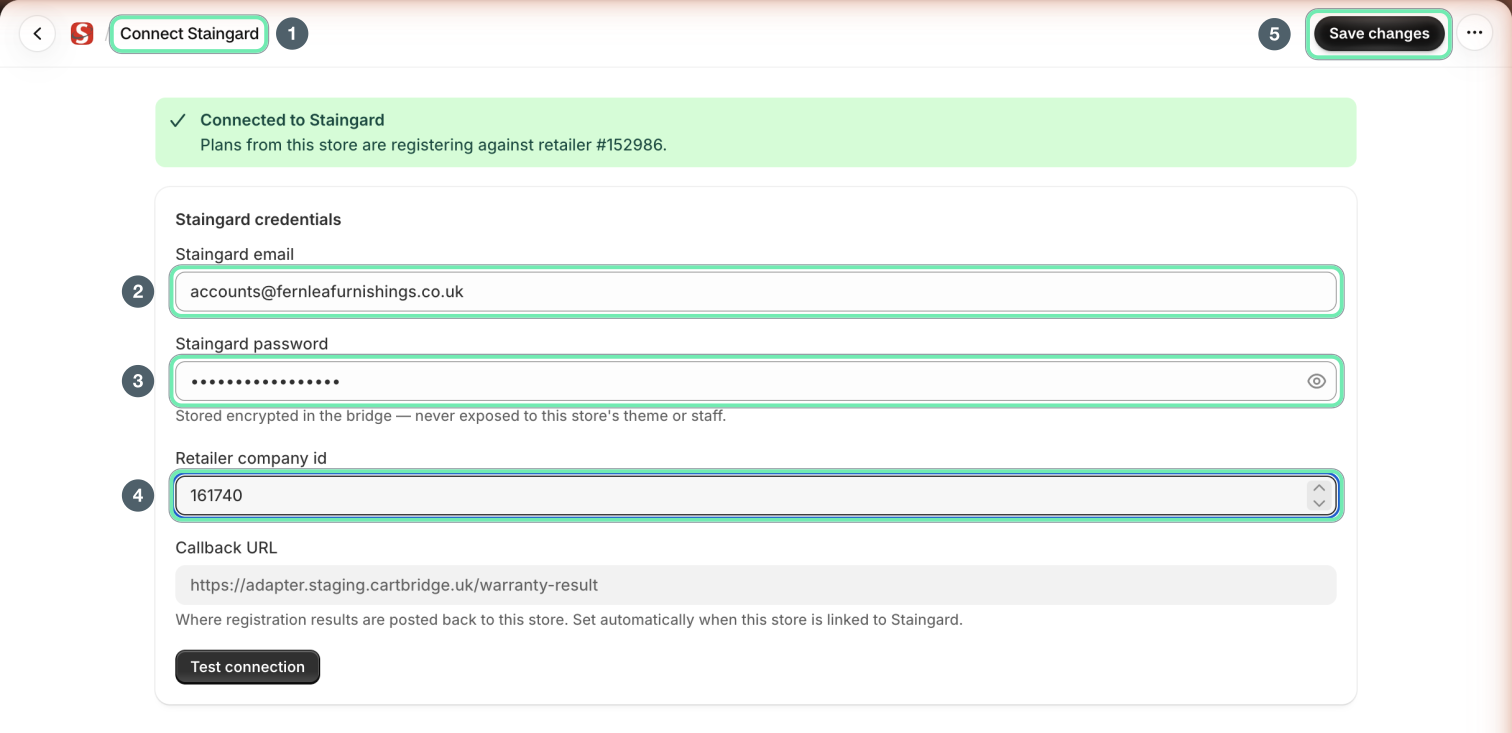
- In the app's menu, open Connect Staingard.
- Enter your Staingard email.
- Enter your Staingard password.
- Enter your Retailer company id.
- Select Save changes.
The banner at the top reads Not connected yet until your details are saved and the connection has been tested. Callback URL is filled in for you: it's where Staingard posts registration results back to your store, and the app set it when your store was linked. Leave it as it is.
When the save goes through, a message reads Staingard settings saved. Saving also tests the connection, so the next section's messages can appear now.
Test the connection
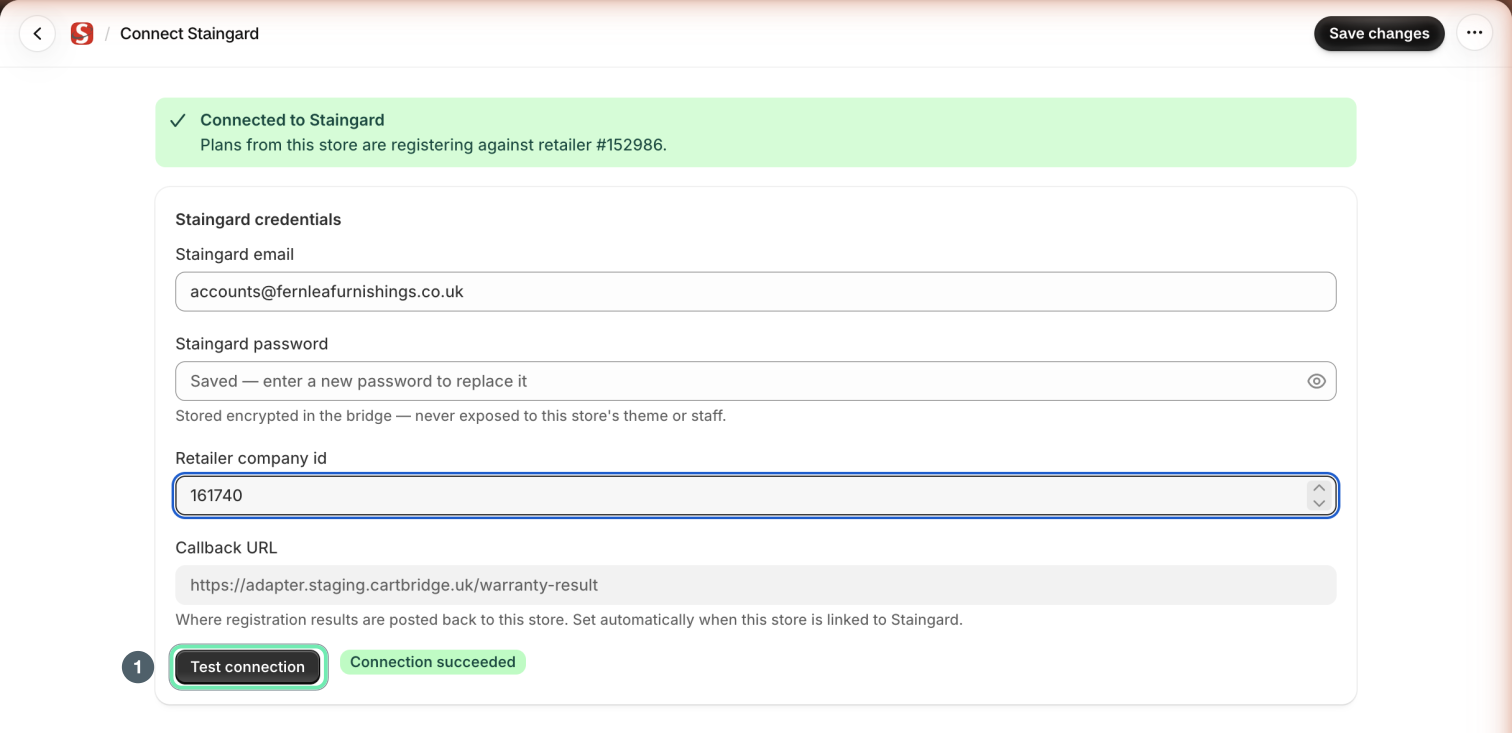
- Select Test connection.
When it succeeds, Connection succeeded appears beside the buttons and the banner changes to Connected to Staingard, naming your retailer number. You're connected.
If it fails, a message under the buttons says why. The same messages can appear after Save changes, because saving tests too.
Map your store locations
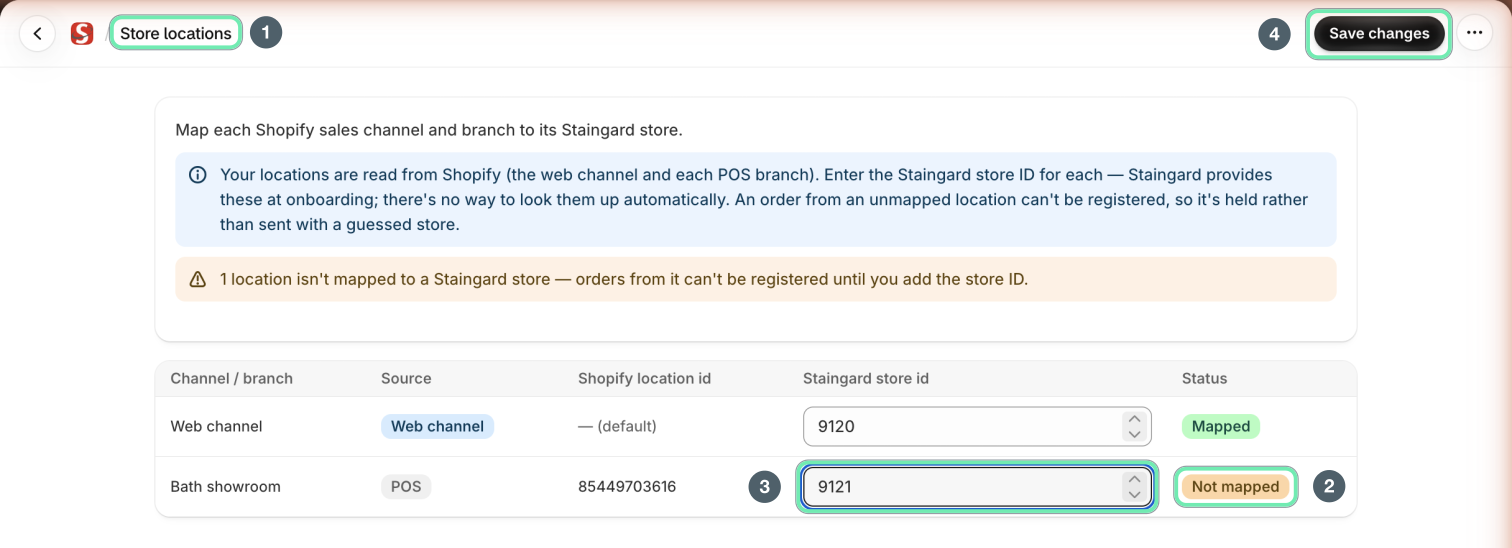
Every registration is filed against a Staingard store, so each of your Shopify locations needs the Staingard store ID that goes with it. An order from a location without one waits rather than registers against a guessed store.
- In the app's menu, open Store locations.
- Find each row showing Not mapped. Your web channel and each POS branch has a row.
- Enter its Staingard store id.
- Select Save changes.
Every row now reads Mapped, and a message confirms Store mapping saved.
While any location is unmapped, a banner above the table counts them: 1 location isn't mapped to a Staingard store — orders from it can't be registered until you add the store ID. Staingard provides the store IDs when it sets you up; the app can't look them up for you. If you see The store mappings didn't reach the server, so nothing was saved. Reload the page and try again., reload and enter them again.
An order already waiting with Waiting to register — this location has no Staingard store doesn't register by itself when you map the location. Open it and select Retry this order's registrations; This location has no Staingard store explains the hold.
If Staingard refuses the connection later
If Home shows Staingard refused this store's connection in place of your registrations, Staingard has withdrawn the connection on its side, and the app can't send or show registrations until it's restored. Nothing in the app clears it, so contact Staingard.
Still stuck? Email Staingard at salesteam@staingard.co.uk.