
Set your plan prices
Decide what a plan costs on the Plan pricing screen: fixed Pricing tiers by the value of the covered items, or a Percentage of value. The preview shows what a customer would pay before you save, and nothing sells until a price is saved.
One-minute video of this guide: Set your plan prices.
Open Plan pricing
Select Plan pricing in the app's menu.
Under How do you price plans? there are two modes. Pricing tiers, the default, gives a plan price for each band of covered-product value. Percentage of value makes the plan a share of what the covered products are worth. Choose tiers when you want round prices by value band, say one price for anything under £1,000 and another above it. Choose a percentage when one rate per category is simpler. Either way, the price is yours, not Staingard's.
Each covered line in a cart gets its own plan price from its own value, never from the cart total or the number of seats or square metres. The app adds those prices into one plan per category. Switching modes keeps the other mode's settings: Your saved rates are kept — switch back any time and they are still here.
Set pricing tiers
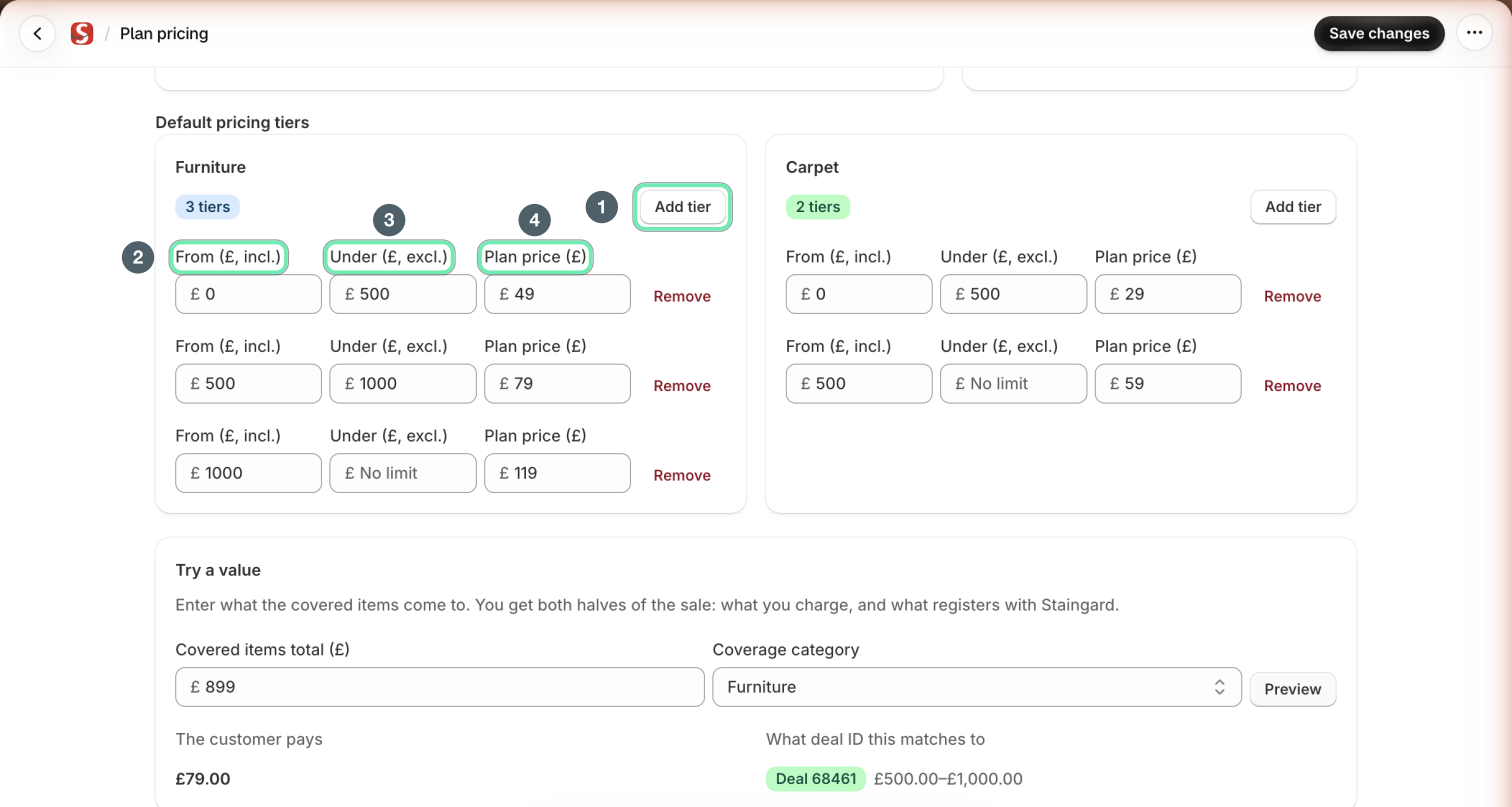
Under Default pricing tiers, each category has its own rows of From (£, incl.), Under (£, excl.) and Plan price (£).
- Select Add tier under the category.
- Enter From (£, incl.), the lowest covered value the tier applies to.
- Enter Under (£, excl.), the value the next tier starts at, or leave it at No limit for the top tier.
- Enter Plan price (£).
- Repeat for each band, then for the other category.
The screen checks the rows when you save:
- Tiers overlap — fix the ranges before saving. Two tiers in the same category cover the same value. Adjust From or Under so every value falls in one tier.
- Every tier needs a plan price — add a plan price or remove the row. A row with no price can't be saved.
- A tier value isn't a valid amount — enter a plain number like 500 or 99.50. No pound sign, no commas.
- The tier rows didn't reach the server, so nothing was saved. Reload the page and try again. Reload, then enter the rows again.
Or set a percentage of value
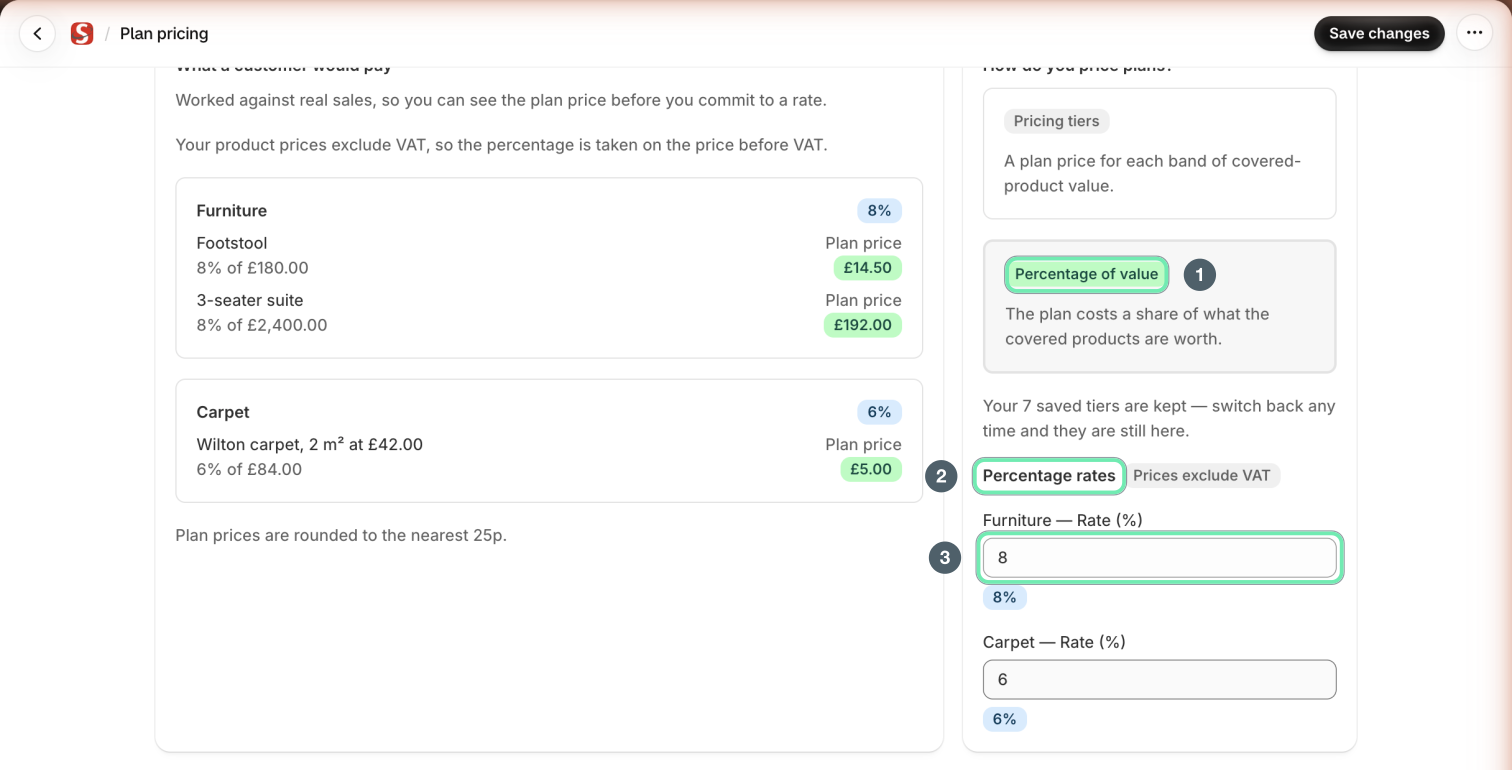
- Under How do you price plans?, select Percentage of value.
- Under Percentage rates, enter a Rate (%) for each category, from 0.01 to 100 with at most two decimal places.
Plan prices are rounded to the nearest 25p. If your product prices include VAT, the percentage is taken on the price your customer pays; if they exclude it, on the price before VAT. The tag beside the rates says which, Prices include VAT or Prices exclude VAT.
A category with no rate shows the badge Not set and a warning: Furniture has no rate set, so plans in that category won't be priced until you add one. Nothing in that category can be priced, so its offer won't appear on your storefront until you add a rate and save. The screen also refuses a rate it can't use:
- A rate isn't a valid percentage — enter a plain number like 10 or 7.5, with at most two decimal places.
- A rate must be between 0.01% and 100%.
- A rate can have at most two decimal places — enter something like 10 or 7.5.
- The pricing mode didn't reach the server, so nothing was saved. Reload the page and try again. Reload, then choose the mode again.
Check the preview

Under Try a value, enter what the covered items come to and see both halves of the sale.
- Enter a value under Covered items total (£).
- Choose a Coverage category.
- Select Preview.
The customer pays shows the plan price for that value under your saved settings. What deal ID this matches to shows which of Staingard's deals that value falls in; the
If the value can't be priced, The customer pays says why:
- No tier covers this value — add one or widen a range. Add a tier for that band, or extend a neighbouring one.
- This category has no saved rate yet. Enter a rate for the category and save.
- A £0 line has nothing to price. A free item sells no plan; enter the real value.
- This can't be priced right now — no cause on our side could be established. Try again in a few minutes. If it keeps happening, contact Staingard.
Not saved yet — save to update this preview. means the preview is showing your saved settings, not what you've typed. Save, then preview again.
Save
Select Save changes. The toast Plan pricing saved confirms it. The storefront and the cart price from saved settings only, so until you save, no product shows the offer.
Staingard's deal bands
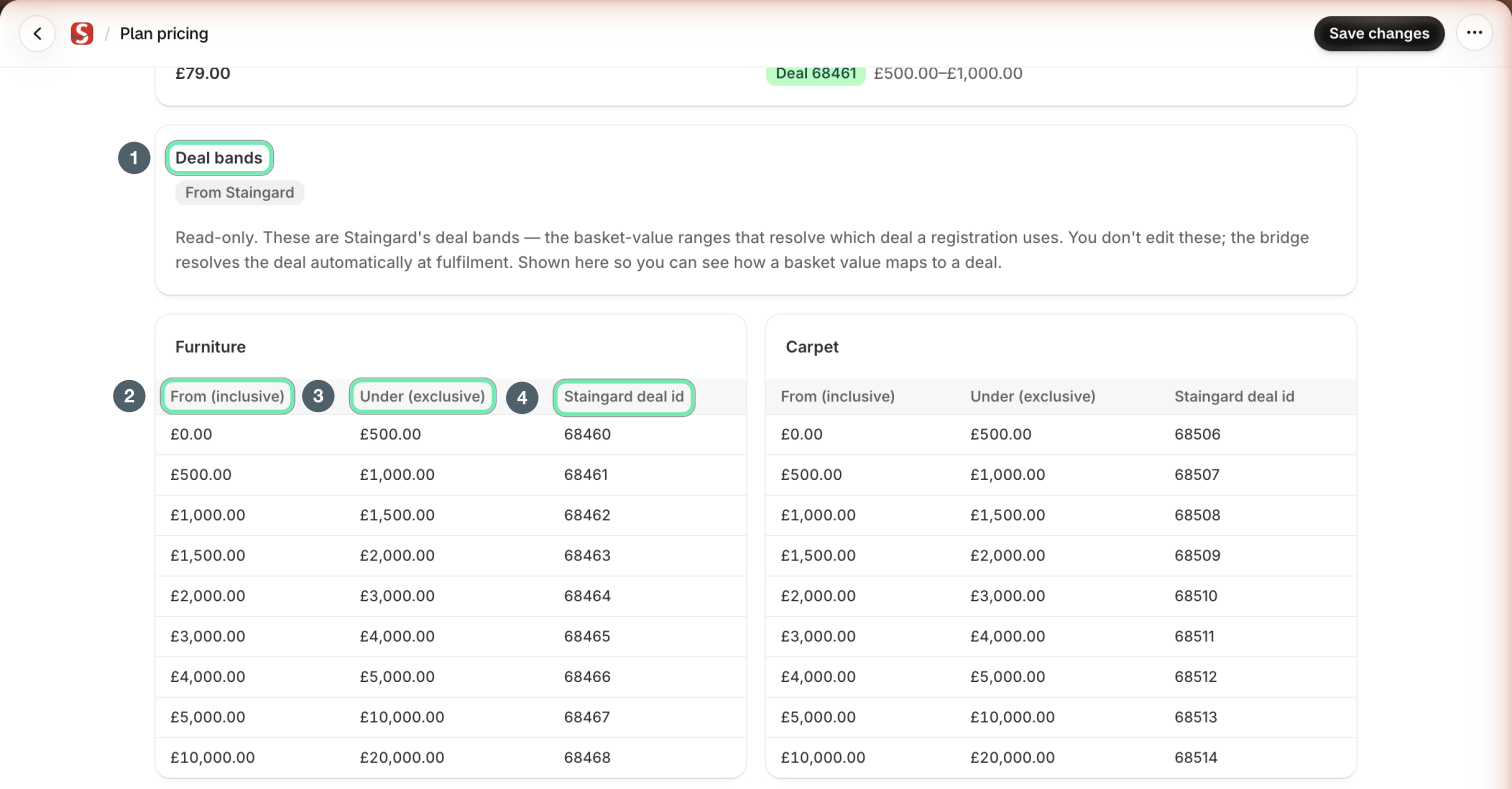
Deal bands is read-only. It lists, per category, the value ranges Staingard's deals cover for your account, as From (inclusive), Under (exclusive) and Staingard deal id. You don't edit these; the app picks the deal for each order on its own when the order is fulfilled. They're shown so you can see how a covered value maps to a deal, and the preview's What deal ID this matches to shows it as Deal and the id.
If the preview shows No band — this would fail to register, no deal of yours covers that value. Despite the wording, nothing fails. An order whose covered items come to that value waits, with Waiting to register — no Staingard deal covers this value on its Plan cover block, until Staingard extends your deals (No Staingard deal covers this value). Ask Staingard to extend your deals for that category, then retry the order.
Still stuck? Email Staingard at salesteam@staingard.co.uk.