
Add plan cover to a draft order
For a sale you take over the phone or in the showroom, add the plan to the draft order with Add plan cover. The app prices it from your settings and registers it on fulfilment like any other. Refresh the draft after adding it, or Shopify saves over it.
Two-minute video of this guide: Add plan cover to a draft order.
Open the Plan cover block on the draft
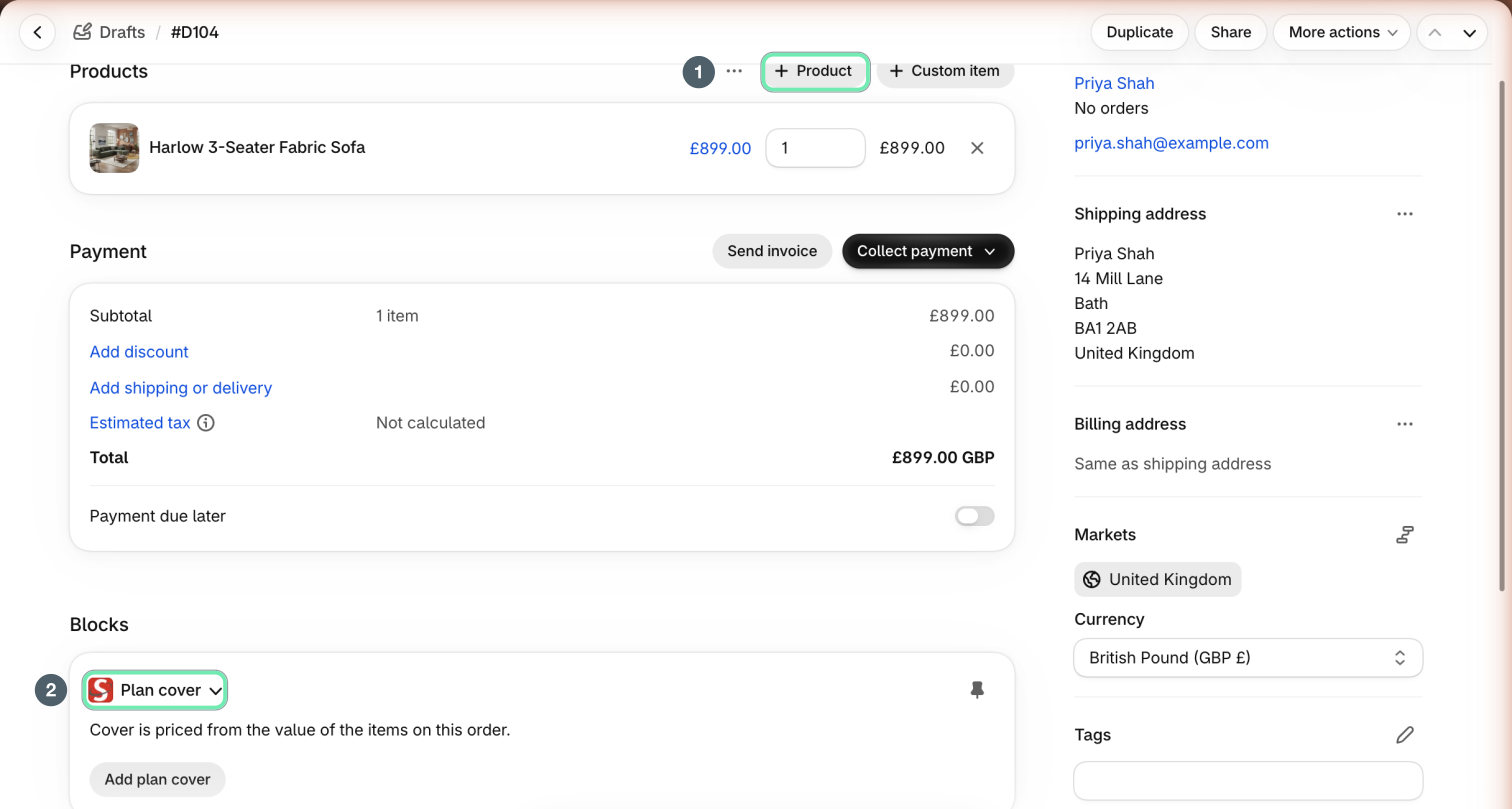
- In Shopify, open the draft order and add the items the customer is buying.
- Find the Plan cover block among the blocks on the draft order page.
Before any cover is added, the block reads Add cover to this order with the note Cover is priced from the value of the items on this order. and the button Add plan cover. Cover is priced from what's on the draft, so add the items first.
Add the cover
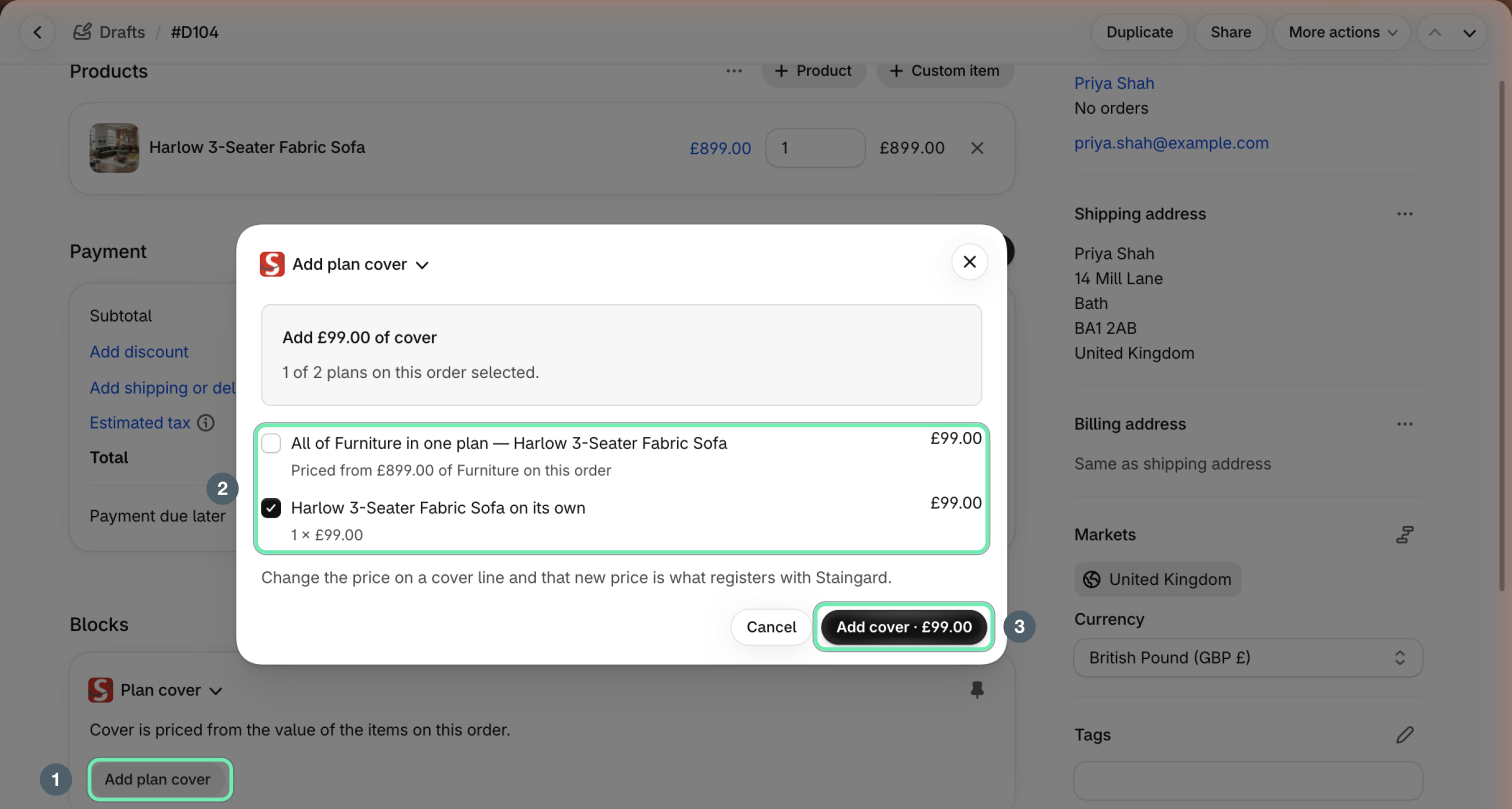
- Select Add plan cover.
- In the picker, tick what the customer wants. Each covered item is listed on its own with its plan price. Each category is listed too, All of Furniture in one plan for instance, priced from the value of that category on the order.
- Select Add cover. The button shows the total as you tick.
The picker confirms Cover added and lists each plan with its price. Read the refresh note under it before you touch anything else.
If a category can't be priced, the picker says why:
- Furniture can't be priced: no pricing tier covers £3,200.00. Add a tier that does, then reopen this. Add the tier on Set your plan prices, then open the picker again.
- Furniture can't be priced: its items have no price yet. Give the items a price on the draft, then open the picker again.
- Furniture can't be priced: no rate is set for it yet. Add one on Plan pricing, then reopen this. Add the rate on Set your plan prices, then open the picker again.
- A fourth line says no cause could be found. If you see it, email Staingard.
When nothing on the draft can be priced, the summary reads No cover to add and the picker says Nothing can be added until the pricing below is sorted out.
If there's nothing to add, the picker says so:
- Nothing on this order can be covered. No item on the draft has cover turned on. The hint says where that's done: Cover is set per product in the Staingard Plan Cover panel on the product page. See Choose which products to cover.
- Everything on this order that can be covered already is. The plans are already on the draft. An item or category that's done reads already covered on this order.
- One plan for all of Furniture isn't offered here: an item in it already has a plan of its own. You've covered an item by itself, so the whole-category plan is off.
- A count of other items on this order aren't covered is the items that don't offer cover.
If the picker says Couldn't work out the cover for this order. Refresh the page to try again. or Couldn't add the cover. Nothing was changed on this order — try again., refresh the page and try again. Nothing was added. This order's cover hasn't changed. means you closed the picker without ticking anything.
Refresh before you save
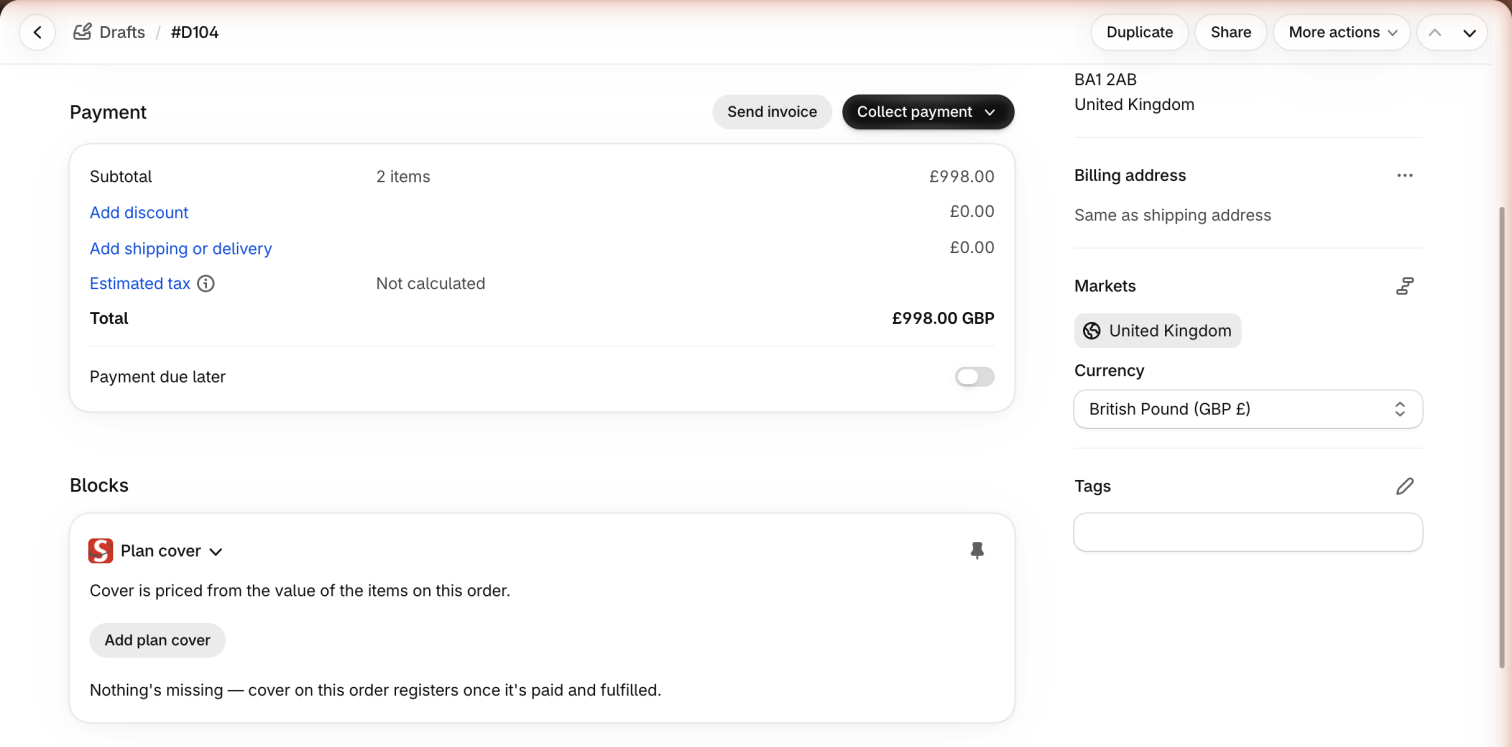
Shopify's draft page doesn't show a line the app has added until the page is refreshed. If you save the draft before you've seen the plan line, Shopify saves the lines it knows about and the cover is gone. The picker ends with this warning:
Shopify's page might not show the change until it's refreshed. If you can't see the cover line under the product line please refresh the page now, then check again before changing anything else or creating the order. Saving before you see the line removes the cover. If the line isn't there yet, wait a moment and refresh again.
- Select Done to close the picker.
- Refresh the page.
- Check that the plan line sits under the product line. Only then change anything else or create the order.
If the cover was lost that way, the Plan cover block says Agreed Furniture cover isn't on this order: the cover was agreed with the customer, but its plan line is gone. Add the cover again, then refresh before saving. If the customer has since declined it, select Remove agreement instead. If the app says Couldn't remove the agreement. Nothing changed on this order — try again., select it again.
If the order has already been created, the same line, Agreed Furniture cover isn't on this order, appears in the order's Plan cover block, and nothing registers for that category. A new sale is the only way to add the cover now. If the customer declined it, select Customer declined so the order's record is complete. If the app says Couldn't record that. Nothing changed on this order — try again., select it again.
Record the customer's decision
When you select Add cover, the app records on the draft that the customer agreed to cover for that category. It keeps that record when the order is created. If the plan line later goes missing, the app can tell you the cover was agreed instead of saying nothing.
Remove agreement on a draft, and Customer declined on a created order, record the other decision. Either way the order shows a known decision, not a lost sale.
If the price or quantity changes
These two notices appear on a draft only, in the Plan cover block, when the items change after the plan was added.
Your tiers price this plan differently now, or Your rates price this plan differently now in percentage mode. The line above it reads Your tiers now price this plan at £36.00, or names the product: Your tiers now price the plan for Harlow 3-Seater Fabric Sofa at £36.00. The block shows the two prices side by side as On this order and From your tiers. A price agreed with the customer is legitimate: leave it as it is. To take the new price instead:
- Select Use the tier price, or Use the rate price in percentage mode.
- Read the confirmation Change this plan's price to £36.00? It changes only the plan line's price. If the new price is higher, it adds This raises the order total, and the plan won't register until the added balance is paid.
- Select Change the price.
The plan for Harlow 3-Seater Fabric Sofa covers 1, the order has 2. A plan covers each unit of its item, so the two counts must match. If they don't, Shopify stops Mark as paid with a business rules check and offers Ignore and create order. Go through there and only the units the plan and the item share register. Items beyond the plan aren't covered, and plan units beyond the items are flagged for a refund. Match them first:
- Select Match the quantity.
- Read the confirmation Match the plan for Harlow 3-Seater Fabric Sofa to the order? It changes only the plan line's quantity, at the price already on it.
- Select Match the quantity.
If the app says Couldn't change the price. Nothing changed on this order — try again. or Couldn't change the plan's quantity. Nothing changed on this order — try again., select the button again.
The picker also notes: Change the price on a cover line and that new price is what registers with Staingard. A price you type on the plan line is honoured as agreed; it's never flagged as a shortfall.
What the draft will wait on
The Plan cover block on a draft looks ahead. Once the plan is on the draft, it lists anything that would hold the registration after the order is created. The block is headed 1 issue or the count, and each line starts Won't register yet. Select More information beside a line for what to do before you complete the order. When nothing is missing, the block reads Nothing's missing — cover on this order registers once it's paid and fulfilled.
The reasons are the same seven a completed order can wait on. Fix them on the draft, or clear them on the order afterwards as Clear a hold on an order describes.
Still stuck? Email Staingard at salesteam@staingard.co.uk.